
⚠️ Who is this article for? This guide is for Entity Admins and Unit Heads who want to understand the ACT Module before using it. If you cannot see the Actions tab on your dashboard, the module may not be enabled for your account — see ACT Module permissions and how to enable it.
Getting survey results is only the first step. The harder part — and where most organisations struggle — is knowing what to do with them. That is exactly what the ACT Module is built to solve. It gives you a structured, in-platform workspace to turn your survey insights into real, trackable action.
💡 How it flows: Analyse your results on the dashboard → Go to the Actions tab → Review your dimension scores → Explore action suggestions → Create and track Action Plans. The ACT Module closes the feedback loop between survey insights and real change.
Why the ACT Module Exists
After a survey closes, three challenges tend to come up consistently. First, uncertainty — it is not always clear which areas to prioritise first. Second, ideas — it can be difficult to know where to begin when looking for solutions. Third, accountability — without a system for tracking follow-up, commitments can fall through the cracks. The ACT Module is designed to address all three in one place.
What You Will See on the Actions Tab
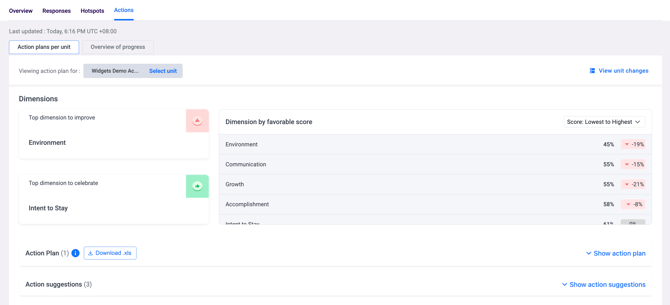
The Actions tab sits alongside Overview, Responses, and Hotspots on your dashboard. It has two sub-tabs at the top:
- Action plans per unit — the main working view where you review dimension scores, action suggestions, and manage action plans for a specific unit.
- Overview of progress — a summary view showing progress across all action plans.
On the Action plans per unit view, you will see a unit selector at the top showing which unit you are currently viewing. Click Select unit to switch to a different unit. On the right, View unit changes shows any recent changes made to action plans for that unit.
The page is organised into three sections below the unit selector:
Dimensions — shows your Top dimension to improve (highlighted in red) and Top dimension to celebrate (highlighted in green), alongside a full Dimension by favorable score table. The table lists all dimensions with their favourability score and change from the previous survey. You can sort the table from Lowest to Highest or Highest to Lowest using the dropdown.
Action Plan — a collapsible section showing the number of active action plans for the selected unit. Click Show action plan to expand it, or Download .xls to export the action plan data.
Action Suggestions — a collapsible section showing the number of curated suggestions available for the selected unit. Click Show action suggestions to expand and browse them.
Who Can Use the ACT Module
Both Entity Admins and Unit Heads can access the ACT Module, but what they see depends on their permission level. Entity Admins see an organisation-wide view — action suggestions and plans across all teams. Unit Heads see a team-level view — suggestions and plans relevant to their specific unit only.
⚠️ Important: The ACT Module requires an active ACT subscription. If you cannot see the Actions tab on your dashboard, contact your Customer Success Manager to confirm it is enabled for your account. See ACT Module permissions and how to enable it.
See how to explore Dimensions and Action Suggestions.
See how to create and manage Action Plans.
Something Not Working?
The Actions tab is not visible on my dashboard.
- Likely cause: The ACT Module requires an active subscription that may not be enabled for your account.
- Action: Contact your Customer Success Manager to confirm it is enabled. See ACT Module permissions and how to enable it.
I can see the Actions tab but the Dimensions section is empty.
- Likely cause: The ACT Module pulls its data from your survey results — there may not be any results available yet, or your unit may fall below the confidentiality threshold.
- Action: Make sure a survey has been run and results are available on your dashboard. See how to navigate the survey dashboard overview.
Action Suggestions is showing 0 even though I have survey results.
- Likely cause: Your unit's respondent count may be below the confidentiality threshold, which hides suggestions to protect confidentiality.
- Action: Check your respondent count for the selected unit. See what is the confidentiality threshold and why can't I see results?
Still Need Help?
If you have questions about the ACT Module or whether it is enabled for your account, reach out to us at support@engagerocket.co and we'll be happy to assist!
---
⚠️ Who is this article for? This guide is for Entity Admins and Unit Heads (Managers) who want to use the ACT Module to drive action after a survey. If you cannot see the Actions tab on your survey dashboard, your organisation may not have an active ACT subscription. Contact your Customer Success Manager to enable it.
The ACT Module bridges the gap between survey insights and real change. Instead of leaving managers unsure of what to do after a survey closes, ACT gives them a structured space to identify priorities, discover science-backed improvement ideas, and track follow-through. It creates visibility and accountability across your entire organisation.
💡 Where to start: Always begin by reviewing your Dimensions table first — this tells you exactly where to focus before you create any action plans.
What Does the ACT Module Do?
The ACT Module is made up of three connected features that guide you through the full action-planning journey. Together, they take you from raw survey data to documented commitments with progress tracking. Think of it as: get the ideas → make the plan → track the progress.
The three features are:
- Dimensions & Action Suggestions — automatically surfaces your team's biggest strengths and areas for improvement, with curated ideas on what to do next.
- Action Plans — a dedicated workspace to document specific steps, assign deadlines, and track completion.
- Overview of Progress — a single page showing action plan completion across all teams, with real-time status indicators.
How to Access the ACT Module
Once enabled, the ACT Module is accessed through the Actions tab on your main survey dashboard. From there, you'll see two sub-tabs: Action plans per unit and Overview of progress. All three core features live within this tab.
Why the ACT Module Matters
Many organisations collect survey data but struggle to act on it consistently. The ACT Module solves three common post-survey problems: uncertainty about where to focus, lack of ideas for improvement, and no way to hold managers accountable. By keeping everything inside EngageRocket, it closes the feedback loop and builds a culture of continuous improvement.
Something Not Working?
I can't see the Actions tab on my dashboard.
- Likely cause: Your organisation does not have an active ACT subscription, or the module has not been enabled yet.
- Action: Contact your Customer Success Manager to activate the ACT Module for your account.
The Actions tab is visible but I can't create or edit any action plans.
- Likely cause: Your user role may only have view permissions, not edit permissions.
- Action: Ask your Entity Admin to update your permissions to Edit own action plans via the Entity Permissions page.
⚠️ Important: The ACT Module is disabled by default for all accounts. It must be enabled by your Customer Success Manager before any users can access it.
Still Need Help?
If you have questions about the ACT Module, reach out to us at support@engagerocket.co and we'll be happy to assist!