
⚠️ Who is this article for? This guide is for Entity Admins and Unit Heads with access to the ACT Module. If you cannot see the Actions tab on your dashboard, the module may not be enabled or your permissions may need to be updated — see ACT Module permissions and how to enable it.
The Dimensions and Action Suggestions feature is your starting point in the ACT Module. It automatically analyses your survey results and presents your strongest and weakest dimensions, along with a library of expert-curated ideas to help you take action — all without having to dig through the data yourself.
💡 Where to find it: From your main survey dashboard, click the Actions tab, then select Action plans per unit. The page will load your Dimensions table and Action Suggestions based on your survey results.
Choosing a Score Type: Favourability or Mean
If your account has both scoring types enabled, you'll see a Score Type pill at the top right of the dashboard. Use it to toggle between two ways of viewing scores in the Actions tab:
- Favourability (default) — the percentage of employees who gave a positive response.
- Mean — the average rating across responses, shown on your survey's original scale (e.g. a score of on a 1–5 scale).
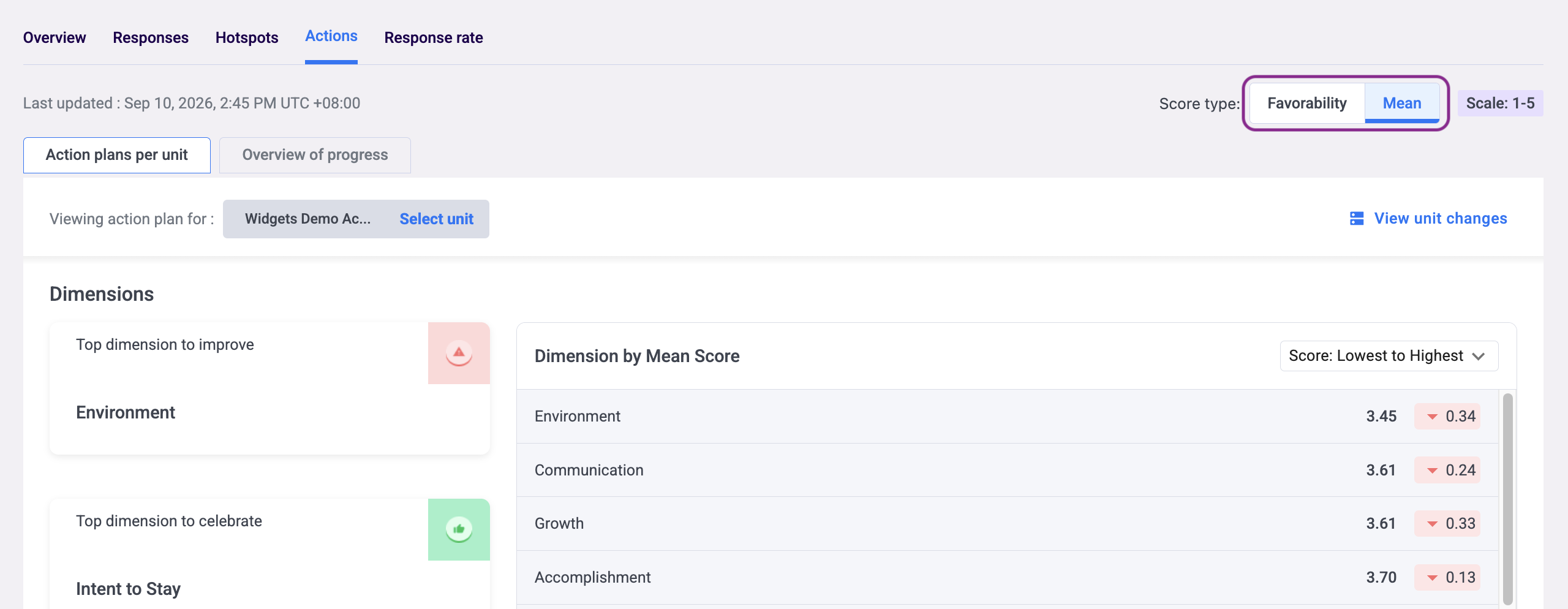
Your selection stays active as you move between tabs, but will reset when you switch to a different survey. Switching the Score Type re-ranks the Dimensions table and updates the highlighted cards to reflect the new scoring basis.
💡 Good to know: Favourability and Mean can rank dimensions slightly differently, since they measure different aspects of the same responses. A dimension with a high average rating (Mean) but a wide spread of scores may not rank as highly under Favourability, which only counts clearly positive responses.
Selecting Your Unit
At the top of the Action plans per unit view, you will see a unit selector showing which unit you are currently viewing. Click Select unit to switch to a different unit — the Dimensions table and Action Suggestions will update automatically to reflect the selected unit's data. If you have admin-level access, you can also use the Viewing as dropdown to toggle between an organisation-wide Admin view and a Unit Head view scoped to a specific team.
Reading the Dimensions Table
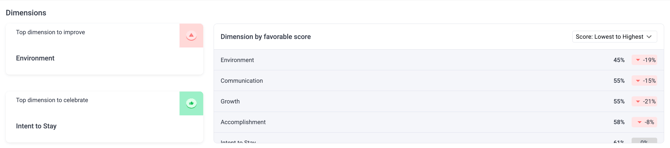
The Dimensions table shows all the categories from your survey, ranked by favourability score to help you prioritise. The table is sorted from lowest to highest score by default — you can change this using the dropdown at the top right of the table. For each dimension you will see the dimension name (such as Environment, Communication, or Growth), the team favourability score for the selected unit, and a change indicator showing whether the score has improved (green), declined (red), or stayed the same (grey) compared to the previous survey.
Two highlighted cards appear above the table and deserve particular attention:
Top dimension to improve — marked with a red icon, this is your biggest opportunity area where focused effort is likely to have the most significant positive impact. This is the recommended starting point for your first action plan.
Top dimension to celebrate — marked with a green icon, this is your team's greatest strength. Recognising what is driving this success is just as important as addressing areas for improvement.
💡 Good to know: If your selected unit's respondent count falls below the confidentiality threshold, the Dimensions section will show an empty state and Action Suggestions will be hidden to protect confidentiality — even if suggestions exist. See what is the confidentiality threshold and why can't I see results?
Exploring Action Suggestions
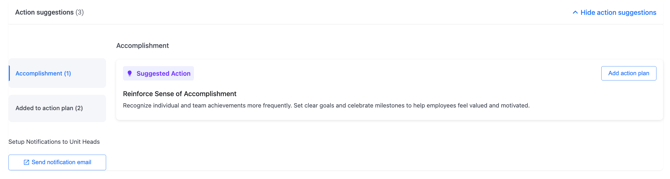
Once you have identified your focus areas, scroll down to the Action Suggestions section and click Show action suggestions to expand it. This is a library of practical, science-backed ideas developed by EngageRocket's People Science team, matched to your survey results automatically.
Suggestions are organised by dimension — weakest dimensions appear first so the most critical areas are always at the top. Each suggestion card includes a title and description of the recommended action and the reasoning behind it. The number of available suggestions for each dimension is shown in brackets next to the dimension name.
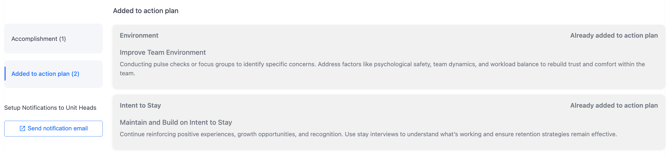
💡 Good to know: You do not have to use suggestions as-is. They are designed as a head start — adapt them to fit your team's specific context or use them as inspiration for a completely custom action plan.
See how to create and manage Action Plans.
Admin vs Unit Head Views
What you see in the Actions tab depends on your permission level and the Viewing as setting.
Viewing as Admin — dimension scores and suggestions are based on the full organisation's results, or filtered to a specific group you select. This gives a high-level, strategic view of where the organisation needs to focus.
Viewing as Unit Head — suggestions and scores are automatically filtered to show what is most relevant for the specific unit the user is assigned to. This is the view managers use to get targeted ideas they can implement directly with their team.
⚠️ Important: When you switch between Admin and Unit Head views, any applied filters will be reset automatically.
Something Not Working?
The Actions tab is empty or shows no dimensions.
- Likely cause: There may be no survey results available yet for the selected unit, or the unit's respondent count is below the confidentiality threshold.
- Action: Confirm that a survey has been run and results are available on your dashboard. See how to navigate the survey dashboard overview.
I do not see a Viewing as dropdown.
- Likely cause: This toggle is only available to users with admin-level access.
- Action: If you only have Unit Head access, you will see your team's view by default. Contact your Entity Admin if you need broader access.
The dimension scores look different from what I see on the main dashboard.
- Likely cause: A unit filter may be applied on the Actions tab that is narrowing the data to a specific group.
- Action: Check your unit selection at the top of the page and adjust it to match what you want to view.
Action Suggestions is showing 0 even though I have survey results.
- Likely cause: Your selected unit's respondent count may be below the confidentiality threshold.
- Action: Check your respondent count for the selected unit. See what is the confidentiality threshold and why can't I see results?
Still Need Help?
If you have questions about exploring Dimensions or Action Suggestions, reach out to us at support@engagerocket.co and we'll be happy to assist!