
Also applies to: survey invitation not received, reminder email not received, employees not getting survey link, survey email in spam, wrong email address, resend survey invitation, survey not launched yet, whitelist EngageRocket emails.
⚠️ Who is this article for? This guide is for Entity Admins managing survey distribution. If you are a respondent who has not received your survey link, please contact your HR team or Entity Admin directly — they are best placed to investigate and resend your invitation.
When respondents report they have not received a survey invitation or reminder, there are a small number of likely causes — and most can be resolved quickly. Work through the sections below in order.
💡 Where to start: Before you launch any survey, make sure EngageRocket's sending domain has been whitelisted by your IT team (Section 1). This is the single most effective step you can take to ensure emails reach your respondents reliably. If you are already mid-survey and emails are not arriving, start from Section 2.
1. Whitelist EngageRocket's sending domain before you launch (recommended)
Corporate email systems — especially in larger organisations — frequently block or filter automated emails from unfamiliar senders. This means that even when everything is set up correctly in EngageRocket, your employees may never see their survey invitation because it was intercepted before it reached their inbox. This is the most common cause of survey email delivery issues, and it is entirely preventable.
Whitelisting tells your organisation's email gateway to always allow emails from EngageRocket's sending domain, ensuring they are delivered directly to your respondents' inboxes without being filtered. We strongly recommend doing this before you launch your first survey — not after emails start going missing.
To whitelist EngageRocket, contact your IT team and ask them to whitelist EngageRocket's sending domain at the email gateway level. If you do not yet have the sending domain details, reach out to us at support@engagerocket.co and we will provide them. Pass these details on to your IT team so they can set up the whitelist rule before your survey goes live.
💡 If you are setting up EngageRocket for the first time, getting whitelisting done early is one of the most impactful things you can do to protect your survey participation rates. Employees who don't receive an invitation simply won't respond — and low participation affects the quality and visibility of your results.
2. The email may have gone to spam or junk
Even with whitelisting in place, some individual email clients may still filter survey emails — particularly if an employee has strict personal spam settings or if whitelisting was set up after the invitation was already sent.
Ask the affected respondent to check their spam or junk folder for an email from EngageRocket. If they find it there, ask them to mark it as "Not spam" and move it to their inbox — this helps future emails get through automatically. If this is happening for multiple people, this is a strong signal that whitelisting has not been completed at the email gateway level. See Section 1 above.
3. The respondent's email address may be incorrect
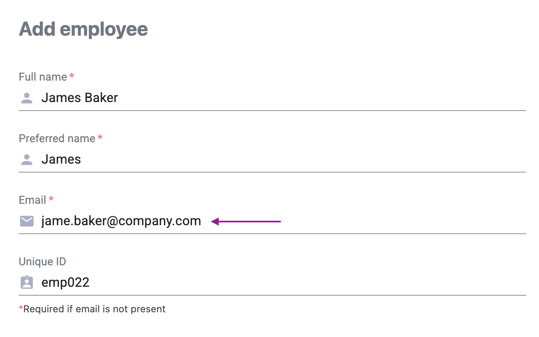
If the invitation was sent to a wrong or outdated email address, the respondent will never receive it. A single typo in the Employee List is enough to cause this.
Go to Employees > Employee List and search for the affected respondent. Confirm their email address is correct and active. If it is wrong, update it and then resend the invitation. See How to Upload and Edit Your Employee List for how to edit an employee's details.
4. The respondent may not be on the survey's recipient list
Even if a respondent is in the Employee List, they may have been accidentally excluded from the specific survey's recipient list. If they are not listed as a recipient, no invitation will have been sent to them at all.
Go to the survey in Survey Projects, open the Recipients tab, and search for the affected employee. If they are not listed, add them to the recipient list and send them an invitation. See How to Send or Resend Survey Invitation Emails While a Survey Is Running for the exact steps to resend to a specific person.
5. The survey may not have been launched yet
Survey invitation emails are only sent once a survey is in Live status. If the survey is still in draft or scheduled, no emails will have gone out — even if the recipient list is fully set up.
Go to Survey Projects and check the status of your survey. If it shows as Draft or Scheduled, the survey has not been launched yet. See How to Set Up Survey Communications and Launch Your Survey for the steps to launch it and trigger invitation emails.
6. How to resend an invitation or reminder email
If you have confirmed the respondent's email address is correct and they are on the recipient list, the next step is to resend their invitation directly from the platform. You can resend to a single person or to all respondents who have not yet replied.
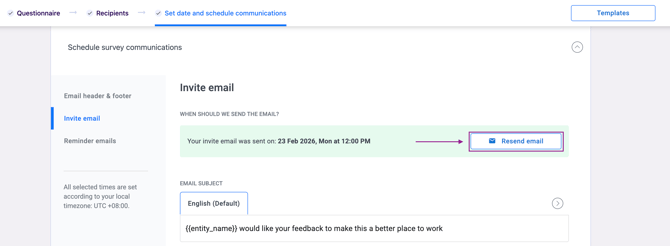
Go to the survey in Survey Projects, click the three-dot menu (⋮) next to the survey name, and select Edit communication. Under Schedule Survey Communications, go to the Invite Email section and click Resend Email. Choose either Send to a specific recipient (for one person) or Send to all pending recipients (for everyone who has not responded yet). The survey must be in Live status for this option to appear.
For reminder emails specifically, go to the Reminder Emails tab in Communications and click Resend Email — a reminder must already be scheduled to use this. See How to Send or Resend Survey Invitation Emails While a Survey Is Running for the full step-by-step guide.
Something Not Working?
A respondent still hasn't received the email after resending — what now?
- Likely cause: The email is being blocked at the corporate email server level, not the individual inbox level. Whitelisting has likely not been completed.
- Action: Ask the respondent to check all folders including spam. If still not received after 10 minutes, contact support@engagerocket.co with the respondent's email address and survey project name. Share EngageRocket's sending domain details with your IT team to get whitelisting set up as soon as possible.
The Resend Email button is not showing — why?
- Likely cause: The survey has not been launched yet, or the Invite Email has not been configured in the communication settings.
- Action: Confirm the survey is in Live status. If it is still in Draft or Scheduled, launch it first. See How to Set Up Survey Communications and Launch Your Survey.
I selected "Send to all" but some employees still didn't receive the email.
- Likely cause: Those employees may have already submitted their response — the "Send to all" option only goes to respondents who have not yet completed the survey.
- Action: Check the participation data on your dashboard to confirm who has and hasn't responded. If an employee has already responded, they will not receive a resend.
Multiple respondents across the organisation are not receiving any emails.
- Likely cause: EngageRocket's sending domain has not been whitelisted at the email gateway level for your organisation.
- Action: Contact support@engagerocket.co to get the sending domain details, then ask your IT team to whitelist it at the email gateway level as a priority. Do not keep resending emails without first resolving the root cause, as this may cause confusion for respondents.
⚠️ Important: If many respondents across different teams are not receiving emails, this is almost always a whitelisting issue at the organisation level. Escalate to your IT team and contact support at the same time to get the sending domain details. This should be treated as a priority before participation rates are affected.
Still Need Help?
If respondents are still not receiving survey emails after following these steps, reach out to us at support@engagerocket.co and we'll be happy to assist!