
⚠️ Who is this article for? This guide is for Entity Admins and users with a custom role that grants survey management access. If you cannot access the survey's communication settings, you may not have the necessary permissions — contact your Entity Admin for help.
Once a survey is live, you can send or resend invitation emails directly from the platform at any time. This is useful when a new employee needs to be added mid-survey, when a recipient missed their original invite, or when you want to send a bulk reminder to everyone who has not yet responded. You do not need to relaunch the survey to do this.
💡 Good to know: The Send to all option only sends to recipients who have not yet submitted their response. Employees who have already completed the survey will not receive the email again.
How to Send or Resend an Invitation Email
Navigate to the Project page and select the survey that is currently running. Click the three-dot menu (⋮) next to the survey name and select Edit communication from the dropdown. A confirmation pop-up will appear — click Edit survey anyway to proceed.
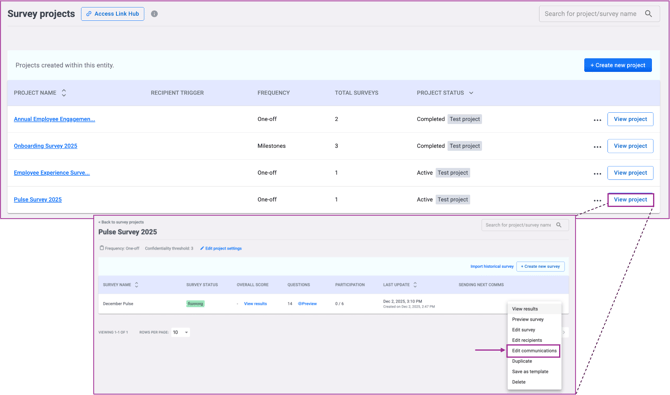
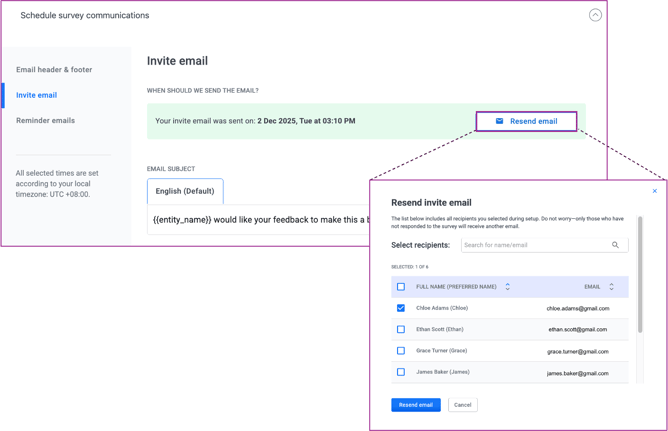
On the Communications page, click Schedule Survey Communications to access your email settings. Under the Invite Email section, click Resend Email. You will then choose one of two options:
- Send to a specific recipient — paste the email address of the individual you want to send the invite to. Use this when a single employee missed their invitation or was added to the survey after launch.
- Send to all pending recipients — sends the invitation to everyone who has not yet responded. Use this for a bulk resend when response rates are low.
⚠️ Important: The Resend Email option is only available after the survey has been launched. If the survey is still in draft, you will not see this option — launch the survey first.
See how to set up survey communications and launch your survey.
Something Not Working?
The Resend Email button is not appearing.
- Likely cause: The survey has not been launched yet, or the Invite Email has not been configured in the communication settings.
- Action: Check that the survey is live and that an Invite Email has been set up under Schedule Survey Communications. See how to set up survey communications and launch your survey.
I sent the invitation but the employee says they did not receive it.
- Likely cause: The email address on file may be incorrect, or the email may have been filtered to spam.
- Action: Check the employee's email address in the Employee List and ask them to check their spam or junk folder.
I selected Send to all but some employees did not receive the email.
- Likely cause: Those employees may have already submitted their response.
- Action: The Send to all option only sends to recipients who have not yet responded — employees who have already completed the survey are excluded automatically.
Still Need Help?
If you have questions about sending or resending survey invitation emails, reach out to us at support@engagerocket.co and we'll be happy to assist!