
⚠️ Who is this article for? This guide is for Entity Admins and users with a custom role that grants survey management access. If you cannot see the Communications page in your survey setup, you may not have the necessary permissions — contact your Entity Admin for help.
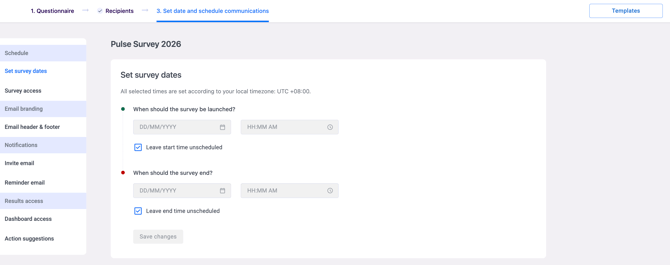
The Set date and schedule communications page is the final step before your survey goes live. This is where you schedule the survey dates, configure how respondents access it, and set up all the emails they will receive — from the invite email through to reminders and results access notifications for the roles you choose.
The page is organised into four sections, shown in the menu on the left: Schedule, Email branding, Notifications, and Results access. This guide walks you through each one in order. Click Save changes at the end of each section before moving to the next.
💡 Where to start: Complete your questionnaire setup and recipient list before configuring communications. Set date and schedule communications is step 3 of the survey setup flow.
Starting from a Template (Optional)
If you have set up communications for a previous survey, you can reuse them instead of starting from scratch.
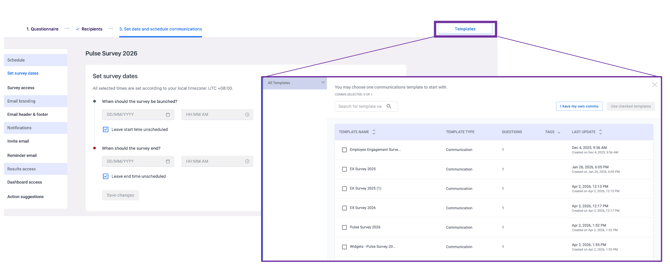
- Click Templates at the top right of the page.
- Browse or search for a template by name. Each template shows its type and when it was last updated.
- Tick the template you want to use. You can choose one communications template.
- Click Use checked templates to load it into your survey.
If you prefer to write your emails from scratch, click I have my own comms.
💡 Good to know: A template only gives you a starting point. You can still edit every email after loading it.
Step 1: Schedule Your Survey
Start with the Schedule section in the left menu. This is where you decide when your survey runs and how participants will reach it.
Setting Your Survey Dates
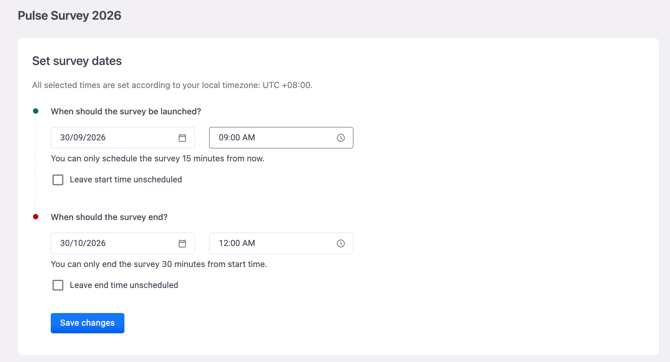
Set the date and time when the survey will be launched — this is when invite emails will be sent to recipients. Then set the date and time when the survey will end, which is when the survey closes and responses stop being accepted. All times are based on your local timezone, which is shown at the top of the section.
If you are not ready to schedule yet, tick Leave start time unscheduled or Leave end time unscheduled to manage the timing manually and launch or close the survey yourself at a later stage. Click Save changes.
Configuring Survey Access
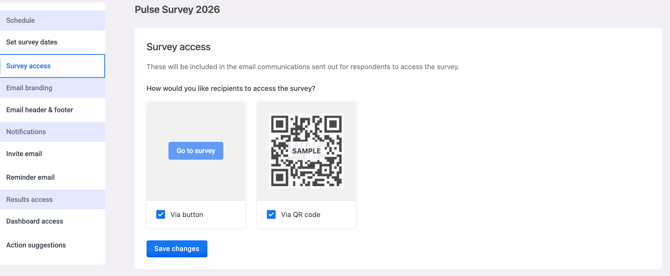
Choose how participants will access the survey — via a button link embedded in the email or via a QR code. Both options are included in the invite email automatically, so you do not need to choose one over the other.
Step 2: Brand Your Emails
Next, go to the Email branding section to give your survey emails a consistent look.
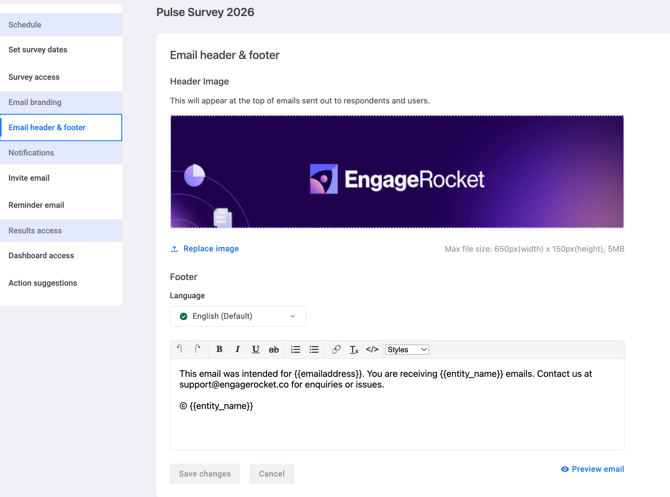
Adding Your Email Header and Footer
Open Email header & footer, then upload a header image and customise the footer for your survey emails. Your branding applies to all emails sent for this survey. Click Save changes.
Step 3: Set Up Your Survey Notifications
The Notifications section is where you write the emails your participants will receive: the invite email and any reminders.
Writing Your Emails in Multiple Languages
If your questionnaire has more than one language, you can write each email separately for each language. Use the Language dropdown at the top of each email to switch between languages. The dropdown always shows the same languages you added in the Questions Translations tab of your questionnaire.
Each language in the dropdown shows a status icon:
- ✅ Green tick — the email content for this language is complete.
- ⚠️ Amber mark — some content for this language has not been translated yet.
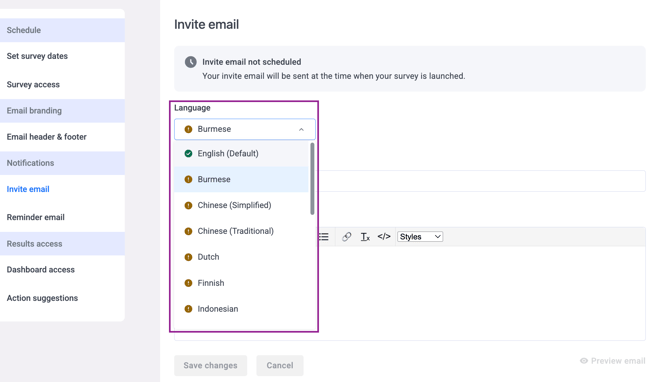
Each employee receives the email version that matches the language assigned to them in the Employee List. Employees without a language assigned receive the English version.
💡 Good to know: English (Default) is always included and cannot be removed. If a field has not been translated for a language, for example the subject line, the English version of that field is sent instead.
⚠️ Important: If you remove a language from the questionnaire, all email content written in that language is permanently deleted and cannot be undone.
Setting Up the Invite Email
The invite email is sent to all recipients when the survey launches. If your survey is not scheduled yet, you will see a message confirming that the invite email will be sent at the time the survey is launched.
Select a language from the Language dropdown, then customise the email subject line and message body. Use piped fields to personalise the email with each recipient's individual data — supported fields are i.e. . Repeat for each language. Click Preview email to review exactly how the email will appear to recipients, then click Save changes.
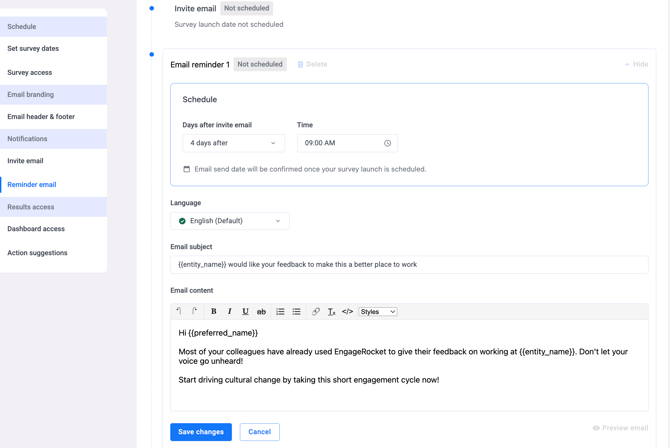
Setting Up Reminder Emails
Configure one or more automated reminder emails to be sent to respondents who have not yet completed the survey. Customise the subject line and message body for each reminder in each language. Reminders are sent automatically to non-completers only — respondents who have already submitted will not receive them. Click Save changes.
Step 4: Choose Who Gets Notified About Results
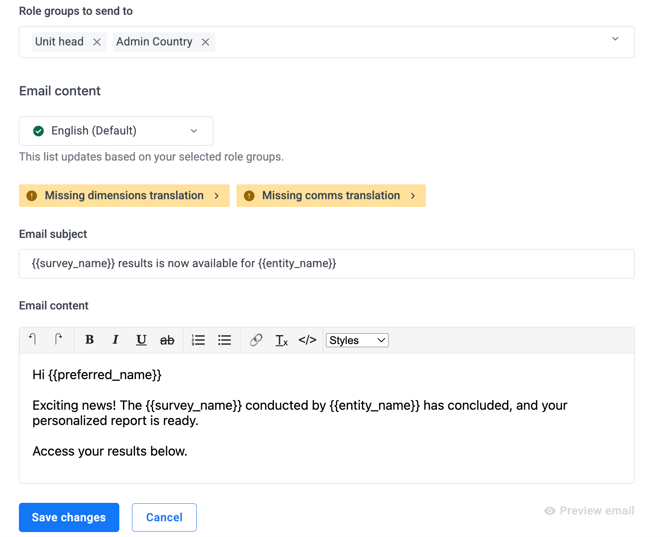
In the Results access section, you decide who is notified when results are ready. You can send each notification to any role set up on the Entity Permissions page, such as Unit Heads, Entity Admins, or custom roles.
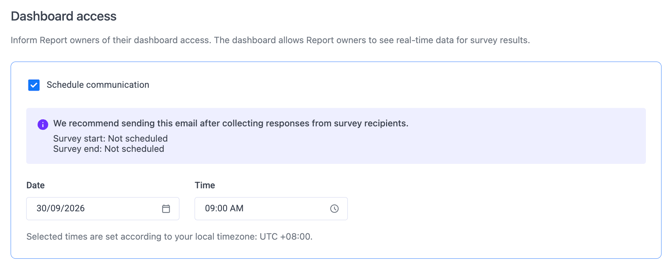
Setting Up Dashboard Access Notifications
Configure email notifications to let the selected roles know when the survey closes and dashboard results become available.
- Choose which roles should receive the notification.
- Customise the timing and content to match your reporting schedule. You can write the content separately for each language.
- Click Save changes.
Each recipient receives the version in the language set for them on the Entity Users page.
Setting Up Action Suggestion Notifications
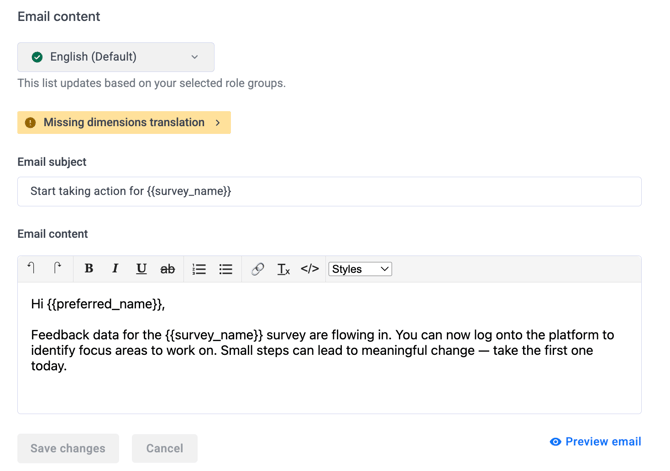
Configure email notifications to share action suggestions with the selected roles, so they can start planning improvements based on their results.
- Choose which roles should receive the notification.
- Customise the content, writing it separately for each language if needed.
- Click Save changes.
As with Dashboard access, each recipient receives the version in their own language.
💡 Good to know: Need a new role to receive these notifications? Create it first on the Entity Permissions page. See how to create and manage custom user roles.
💡 Good to know: If any dimension names are missing a translation, they are flagged on the Dashboard access and Action suggestions screens. Add the missing translations in the Dimensions Translations tab of your questionnaire.
Reviewing and Launching Your Survey
Once all sections are saved, click Continue to review the full survey schedule summary. You can return to any previous step to make changes before launching. When you are ready, click Launch Survey — invite emails will be sent to all recipients on the scheduled launch date.
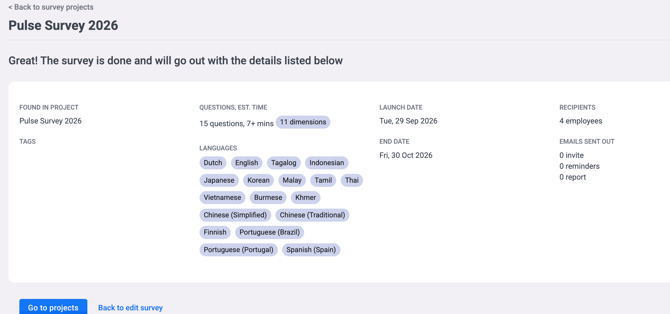
💡 For Milestone surveys: After saving communications for one milestone, click Setup the next milestone to configure the next one in sequence, or Back to edit survey to make changes before moving on. See how to manage survey recipients for Milestone surveys.
Something Not Working?
Piped fields are showing as plain text in the email instead of the recipient's name.
-
Likely cause: The field name may be incorrectly formatted, or the employee's data may be missing in the Employee List.
-
Action: Check that the field uses the exact format including double curly braces and lowercase spelling. Also verify that the relevant field is populated for each employee in the Employee List.
An employee received the email in English instead of their language.
-
Likely cause: The employee does not have a language assigned in the Employee List, or some email fields have not been translated for their language.
-
Action: Check the employee's language in the Employee List. Then open the Language dropdown on the email and complete any language marked with an amber icon.
A language is missing from the Language dropdown.
-
Likely cause: The language has not been added to the questionnaire.
-
Action: Go to the Questions Translations tab of your questionnaire and add the language. It will then appear in the Language dropdown.
A role is missing from the Dashboard access or Action suggestions recipients.
-
Likely cause: The role has not been created on the Entity Permissions page.
-
Action: Go to Entity Permissions and create the role, then return to the Results access section and select it. See how to create and manage custom user roles.
I cannot find the Resend Email option.
-
Likely cause: The survey has not been launched yet.
-
Action: The resend option is only available after the survey has gone live. If the survey is still in draft, launch it first. See how to resend survey invitation emails.
Respondents are not receiving survey emails.
-
Likely cause: The email address on file may be incorrect, or emails may be filtered by the recipient's mail server.
-
Action: Check each affected employee's email address in the Employee List and ask them to check their spam or junk folder. For further help, visit our Troubleshooting & FAQs.
Still Need Help?
If you have questions about setting up survey communications or launching your survey, reach out to us at support@engagerocket.co and we'll be happy to assist!