
⚠️ Who is this article for? This guide is for Entity Admins who need to manage who has access to their EngageRocket account. These actions are all performed from the Entity Users tab under Entity Permissions. For an overview of how all permission tabs work together, see the Overview of the Permissions Section.
The Entity Users tab is your central directory for controlling who has access to your EngageRocket account. This article covers everything from sending your first invitation to managing existing users, including setting their language, updating roles, and removing access when needed.
Understanding the Entity Users Tab
To open it, click Entity Permissions in the top navigation bar, then select the Entity Users tab. You'll see every user with access to your account, along with their Full Name, Email, Language, User Roles, Status, and Last Invite Date.
- Use the search bar to find a user by name or email.
- Click a column header to sort by that column, for example to group users by Language.
- Use the filter on User Roles to show only users with a specific role.
- Use the buttons at the top right to Bulk import, Bulk delete, or Invite users.
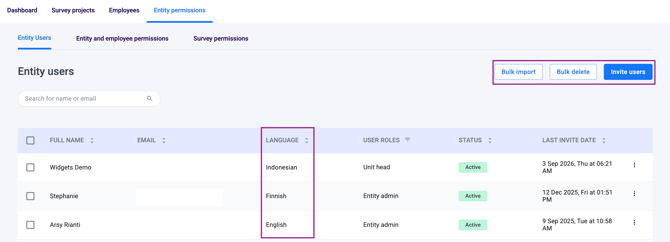
Understanding User Language
Every user who logs in to EngageRocket (Entity Admins, Unit Heads and anyone with dashboard access) has a language for each entity they belong to. It controls:
-
System emails: invitation, welcome, password reset, data export ready and import change log emails are sent in the user's language for that entity. Forgot password emails use the language selected on the forgot password page.
-
Survey notifications: dashboard access and action suggestion emails are sent in the user's language. Any part without a translation (subject, body, header or footer) falls back to English on its own.
-
The dashboard: buttons, tabs and labels are shown in the user's language. Users can switch to English for the session.
If no language is selected, the user is set to English. Only admins can change a user's language.
💡 Good to know:
-
A user's language belongs to the entity, not the person. If someone has access to more than one entity, they can have a different language in each one, and changing it in one entity does not change it in the others.
-
A user's language is separate from the Language set for employees in the Employee List, which is used for survey emails. If the same person is both an employee and a platform user, each language needs to be set in its own place.
Option A: Inviting Users Individually
- From the Entity Users tab, click the 'Invite users' button.
- In the 'Invite users to entity' pop-up, enter the email address of the person you want to invite.
- Select their language from the Language dropdown next to the email address. It is set to English by default.
- To invite more people, click '+ Add user' and repeat steps 2 and 3. You can invite up to 10 users at once — for more, use Option B.
- Under 'Assign user role(s)', select at least one role. The system will not allow you to send an invite without a role assigned.
- Click 'Invite users'. Each user will immediately receive an email in their selected language with a link to join the platform. The link is valid for 7 days.
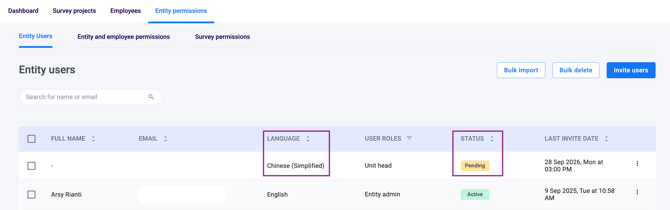
Once sent, you'll see a confirmation message at the top of the page and the new users will appear in the list with a Pending status.
Option B: Inviting Users in Bulk
Use this method when you need to invite more than 10 users at once, or to update the roles and language of many existing users.
- From the Entity Users tab, click the 'Bulk import' button.
- Click 'Download Template' to get the import file.
- Fill in the Users tab of the template following these rules:
- Email (Column A) and User Role 1 (Column C) are mandatory for every row. Do not change the column headings.
- Language (Column B) is optional. Enter the language name in English, for example "Spanish", not "Español". Check the Language List tab for the accepted languages. If you leave it blank, the user is set to English.
- Enter role names exactly as they appear in the User Roles List tab.
- A user can have more than one role — list each additional role in a separate column (User Role 2, User Role 3, and so on). For more than 3 roles, add a new column titled "User Role 4", "User Role 5", and so on.
- Save the file in .xlsx format and upload it. New users will receive email invitations automatically, in their selected language.
⚠️ Important: If a user already exists in the platform and you include them in a bulk import, both their roles and their language will be updated based on the file. If you leave Language blank for an existing user, their language will be reset to English. Always fill in the Language column for existing users, and review the file carefully before uploading.

Understanding User Status
In the Entity Users tab, every user has a status that tells you where they are in the invitation process:
| Status | What It Means |
|---|---|
| Active | The user has accepted their invitation and created a password. They can log in. |
| Pending | An invitation has been sent but the user has not yet accepted it. |
| Expired | The invitation was sent but not accepted within the 7-day validity period. |
The Last Invite Date column shows when each user's most recent invitation was sent.
💡 Expired invitations: You can resend an invitation to anyone with an Expired status. Find the user in the Entity Users tab and click 'Resend Invitation' to give them a fresh 7-day window.
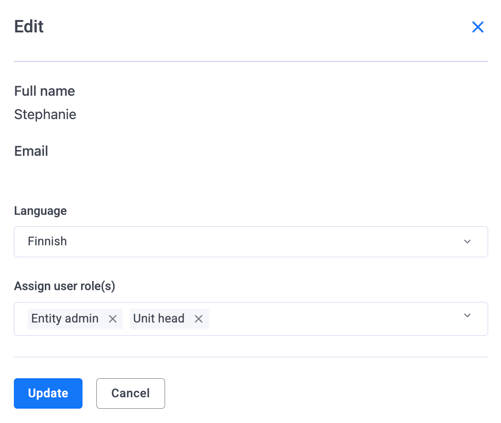
Editing a User's Language and Roles
- From the Entity Users tab, click the user you want to update.
- Select Edit
- Update their language, roles, or both.
- Click Save. The change takes effect immediately, and future emails and the user's dashboard will use the new language.
💡 Editing several users at once: Select the checkbox next to each user, then open the Edit modal. You can only edit several users together if they all have the same language and the same roles. Sorting by the Language column or filtering by User Roles can help you group them first.
💡 Need to create or customise a role first? See how to create and manage custom user roles.
Removing a User
You can remove users by selecting them in the Entity Users list, or remove a large number at once with a bulk delete.
⚠️ Please note: Deleting a user cannot be undone. They will immediately lose all access to your organisation's account. If the person needs access again in the future, they will need to be re-invited as a new user. Their previous activity history in the platform will not be recovered.
Option A: Removing Selected Users
- From the Entity Users tab, tick the checkbox next to each user you want to remove. A bar appears above the list showing how many users are selected.
- Click 'Delete' in the selection bar.
- Type DELETE to confirm. Once confirmed, the selected users will immediately lose all access to your organisation's account.
To start over, click 'Cancel'.
Option B: Removing Users in Bulk
Use this method when you need to remove a large number of users at once.
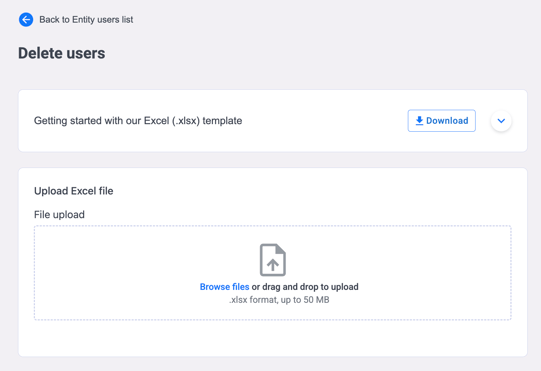
- From the Entity Users tab, click the 'Bulk delete' button. This opens the Delete users page.
- Under 'Getting started with our Excel (.xlsx) template', click 'Download' to get the template. Click the arrow next to it to view the instructions.
- In the Users tab of the template, enter the email address of each user you want to remove in Column A ('Emails to be deleted'). Do not edit the heading of Column A.
- Save the file in .xlsx format.
- Under 'Upload Excel file', click 'Browse files' or drag and drop your file into the upload area. Files must be in .xlsx format and up to 50 MB.
- Once confirmed, the listed users will immediately lose all access.
💡 Good to know: Before uploading, double-check every email address in your file. Every user listed will be removed, and this cannot be undone.
Something Not Working?
The system won't let me send an invite.
- Likely cause: No role has been assigned, or an email address is invalid or duplicated.
- Action: Select at least one role under 'Assign user role(s)' and check each email address before clicking 'Invite users'. To invite more than 10 users, use Bulk import.
A user's invitation has expired.
- Likely cause: The user did not accept the invitation within the 7-day validity window.
- Action: Find them in the Entity Users tab (status: Expired) and click 'Resend Invitation' to give them a fresh 7-day window.
A user's language changed to English after a bulk import.
- Likely cause: The user was included in the import file with the Language column left blank. Blank values reset existing users to English.
- Action: Update their language in the Edit modal, or re-import the file with the correct language filled in for every user.
Bulk import fails because a language or role is not recognised.
- Likely cause: The language is written in its own script (e.g. "Español") or spelled differently from the accepted list, or a role name does not match an existing role.
- Action: Enter languages in English exactly as shown in the Language List tab, and roles exactly as shown in the User Roles List tab, then re-upload.
A user received their emails or sees the dashboard in the wrong language.
- Likely cause: The user's language is set incorrectly for this entity. Language is set separately in each entity, and it is also separate from the employee language in the Employee List.
- Action: Check the Language column in the Entity Users tab and update it in the Edit modal if needed.
I can't edit several users at once.
- Likely cause: The selected users have different languages or different roles.
- Action: Sort by Language or filter by User Roles, then select only users with the same language and roles. Otherwise, edit users one at a time.
I accidentally deleted a user.
- Likely cause: Deletion was confirmed unintentionally.
- Action: Deleted users cannot be restored. Re-invite them as a new user — note that their previous activity history in the platform will not be recovered.
A user says they are not receiving invitation emails.
- Likely cause: The email may have been filtered to spam, or the wrong email address was entered.
- Action: Ask them to check their spam or junk folder. If the issue persists, verify the email address is correct and resend the invitation.
Still Need Help?
If you are having trouble inviting or managing users, reach out to us at support@engagerocket.co and we'll be happy to assist!