
⚠️ Who is this article for? This guide is for Entity Admins who need to understand and configure the Entity & Employee Permissions tab. If you are new to the Permissions section, start with the Overview of the Permissions Section first.
The Entity & Employee Permissions tab controls two things: who can manage users and roles in your account, and who can access your employee data. Before creating custom roles or changing permissions for existing users, it helps to understand exactly what each permission does.
The Four Permissions Explained
| Permission | What It Does |
|---|---|
| Edit Entity Permissions | Grants full administrative control over all three permission tabs — Entity Users, Entity & Employee Permissions, and Survey Permissions. Users with this permission can create roles, invite users, and change anyone's access. This is the highest-level admin permission. |
| View Entity Permissions | Allows the user to see all permission settings across all tabs but not make any changes. Useful for HR partners who need visibility into how access is configured without the ability to change it. |
| Edit Employees | Allows the user to add new employees, edit existing employee records and demographic data, and remove employees from the list. |
| View Employees | Allows the user to see the Employee List and employee data but not make any changes. If this permission is off, the entire Employees tab is hidden from the user's view. |
Auto-Enable Rules
A few permissions automatically enable other permissions when turned on — you do not need to enable both manually:
- Enabling Edit Entity Permissions automatically enables View Entity Permissions.
- Enabling Edit Employees automatically enables View Employees.
Practical Examples
Here are some common role setups to help you understand how to combine these permissions:
| Role | Permissions to Assign | What They Can Do |
|---|---|---|
| HR Admin | Edit Entity Permissions + Edit Employees | Full control over users, roles, and employee data. |
| HR Read-Only | View Entity Permissions + View Employees | Can see user access and employee data but cannot make any changes. |
| Survey Manager | No Entity & Employee permissions needed | Configure their access through the Survey Permissions tab instead. |
💡 Best practice: Start with the minimum permissions required and add more only as needed. Giving a user more access than they need creates unnecessary risk. Do not grant Edit Entity Permissions to users who only need to manage surveys.
Configuring These Permissions for a Role
- Navigate to Entity Permissions and click the 'Entity & Employee Permissions' tab.
- Find the role you want to configure and click 'Edit Permission'.
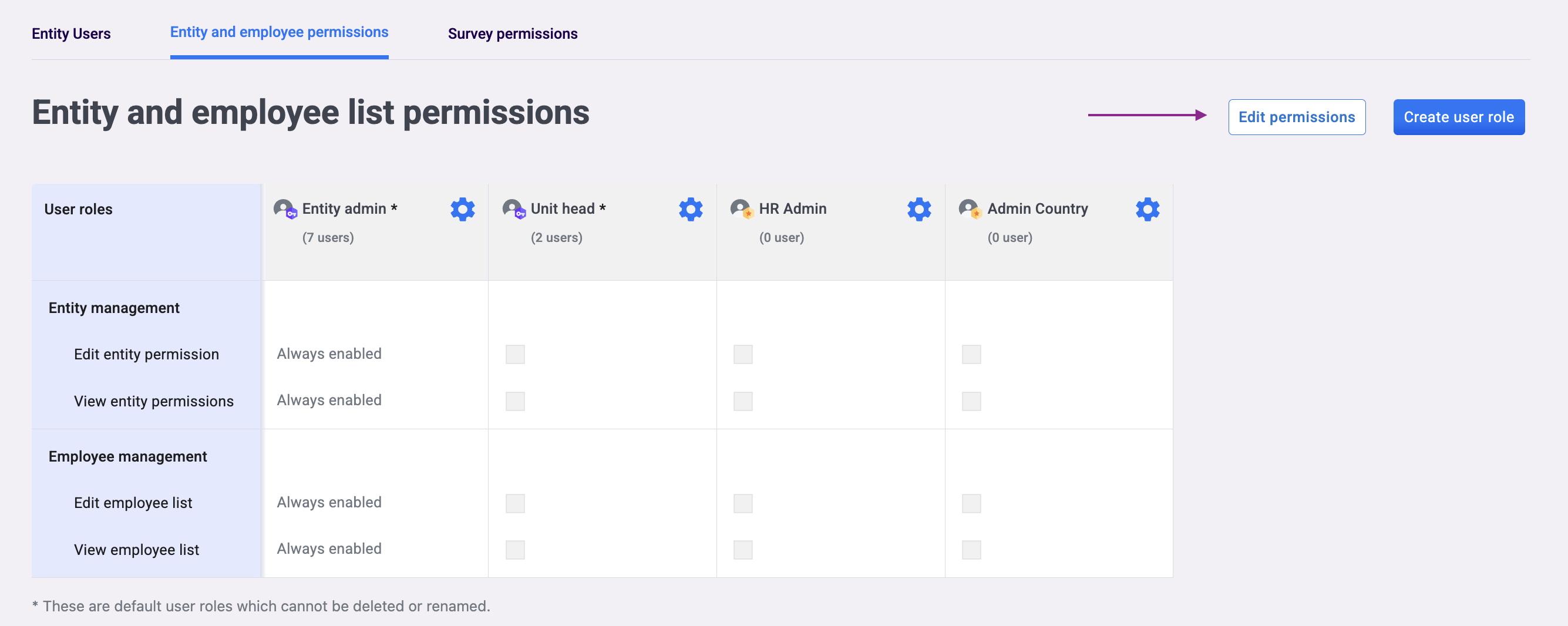
- Select the appropriate permission checkboxes.
- Click 'Save Changes'. The update applies immediately.
💡 Need to create a new role first? See how to create and manage custom user roles.
Something Not Working?
A user says they cannot see the Employees tab.
- Likely cause: The user does not have View Employees permission enabled for their role.
- Action: Go to the Entity & Employee Permissions tab, find the user's role, and enable View Employees.
A user has View Entity Permissions but appears to be making changes.
- Likely cause: The user has been assigned an additional role that includes Edit Entity Permissions. A user with multiple roles inherits the highest permission from all roles combined.
- Action: Review all roles assigned to that user in the Entity Users tab and remove or adjust the role granting Edit access if it is unintended.
I enabled Edit Employees but the user still cannot see the Employees tab.
- Likely cause: The user's browser is showing a cached version of the old view.
- Action: Ask the user to refresh their browser. Permission changes apply immediately but the browser cache may need clearing to reflect the update.
I'm not sure whether to grant Edit or View permissions to a user.
- Action: Default to View permissions first. Only upgrade to Edit if the user's role requires them to actively manage users or employee data. Refer to the practical examples table above as a guide.
Still Need Help?
If you have questions about what a specific permission does, reach out to us at support@engagerocket.co and we'll be happy to assist!