
⚠️ Who is this article for? This guide is for Entity Admins who need to control what their team members and Unit Heads can see and do within EngageRocket. These settings are managed under Entity Permissions. For an overview of how all permission tabs work together, see the Overview of the Permissions Section.
The Survey Permissions tab is where you define two important things: who can create and manage surveys, and who can view the results dashboard and at what level. Getting these settings right ensures that the right people have access to the right data.
Part 1: Survey Permissions
Survey Permissions control who can work with survey projects in EngageRocket. There are four permission levels:
| Permission | What It Does |
|---|---|
| Edit all survey projects | Full control — the user can create, edit, duplicate, and delete all survey projects across the entire entity. |
| View all survey projects | The user can see all survey projects and their settings but cannot make any changes. |
| Edit surveys | The user can create new surveys and edit individual survey projects. |
| View surveys | The user can view the settings and questionnaire of individual surveys but cannot edit them. |
💡 Auto-enable rule: Enabling any Edit permission automatically enables its corresponding View permission — you do not need to turn both on manually. For example, enabling Edit surveys will automatically enable View surveys.
💡 Hidden tab: If all survey permissions are turned off for a user, the Survey Projects tab will be completely hidden from their view.
Configuring Survey Permissions for a Role
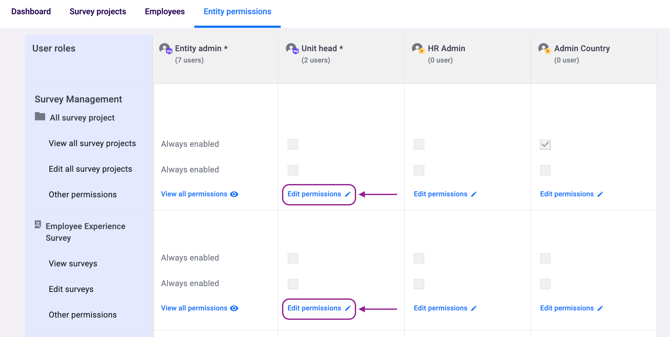
- Navigate to Entity Permissions and click the 'Survey Permissions' tab.
- Find the role you want to configure and click 'Edit Permission'.
- Select the appropriate survey permission checkboxes for that role.
- Click 'Save Changes'. The update applies immediately.
Part 2: Dashboard Permissions
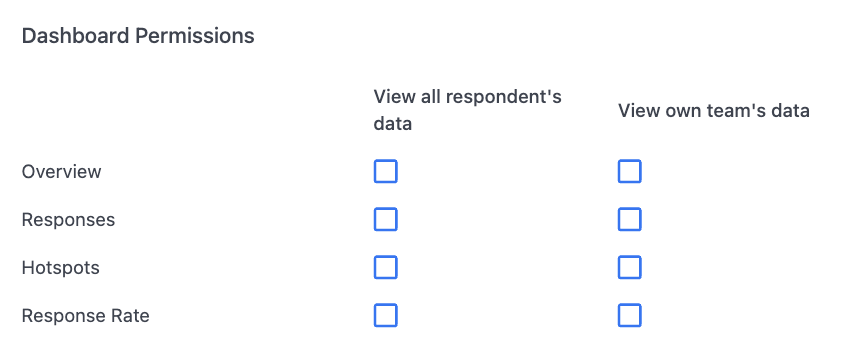
Dashboard Permissions control what survey results a user can see. These settings are found inside the Survey Permissions tab — not as a separate tab.
💡 Note: Dashboard Permissions are not visible at first glance. You need to click a secondary link inside the Survey Permissions tab to access them — see the steps below.
- From the Survey Permissions tab, click the 'Edit other permissions' link. You can grant permissions in two ways — either across All Survey Projects or for a specific survey only (e.g. Employee Experience Survey). Choose the option that best fits the level of access you'd like to grant.
- You will see the Dashboard Permissions section. Select the appropriate access level for the role.
- Click 'Save Changes'.
The two dashboard permission options are:
| Permission | What It Does |
|---|---|
| View all respondents' data | The user can see survey results for the entire organisation — all units and departments, across the Overview, Responses, and Hotspots tabs. This is the highest level of data access. |
| View own team's data | The user can only see results for their assigned unit. This is the standard permission for Unit Heads and team managers. |
Part 3: ACT Module Permissions
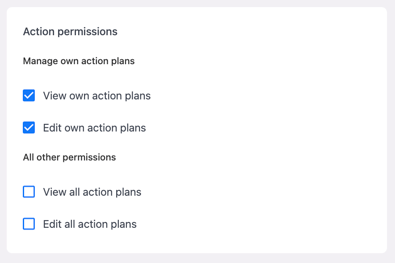
ACT Module access is also configured within the same 'Edit other permissions' section. You can grant:
- View or Edit access to all action plans — for HR teams and admins who need org-wide visibility.
- View or Edit access to own action plans only — for managers who should only see their own team's action plans.
Something Not Working?
I cannot find the Dashboard Permissions section.
- Likely cause: Dashboard Permissions are not shown as a standalone tab — they are nested inside the Survey Permissions tab.
- Action: Go to Entity Permissions > Survey Permissions tab, then click the 'Edit other permissions' link within that tab to access Dashboard Permissions.
A user can see all org data but should only see their own team's data.
- Likely cause: Their Dashboard Permission is set to 'View all respondents' data'.
- Action: Change their Dashboard Permission to 'View own team's data' and click Save. The change takes effect immediately.
The Survey Projects tab is completely hidden for a user.
- Likely cause: All survey permissions are turned off for that user's role.
- Action: Go to Entity Permissions > Survey Permissions, find the user's role, and grant at least 'View surveys' access.
A user has the correct permissions but still cannot see any dashboard data.
- Likely cause: The relevant survey has not yet closed. Dashboard data is only available for closed surveys.
- Action: Check the status of the survey. If it is still active, data will become available once the survey closes.
I enabled Edit permission but the user still cannot edit surveys.
- Likely cause: The permission change may not have been saved, or the user needs to refresh their session.
- Action: Confirm the permission was saved in Entity Permissions. Ask the user to log out and log back in to refresh their access.
Still Need Help?
If you are having trouble configuring survey or dashboard permissions, reach out to us at support@engagerocket.co and we'll be happy to assist!