
⚠️ Who is this article for? This guide is for Entity Admins and Project Admins who manage survey dashboards. If you cannot see the Response Rate tab, reach out to EngageRocket support to have it enabled for your entity.
The Response Rate tab shows how many employees have completed a survey, both overall and by organisational unit. It helps you spot teams that are falling behind on participation so you can follow up before the survey closes. This tab sits inside your survey dashboard, right after the Actions tab.
💡 Where to start: The Response Rate tab is turned on by the EngageRocket team for your entity — it isn't something you can switch on yourself. Once it's enabled, an Entity Admin still needs to grant the right roles access under Dashboard Permissions.
What Is the Response Rate Tab?
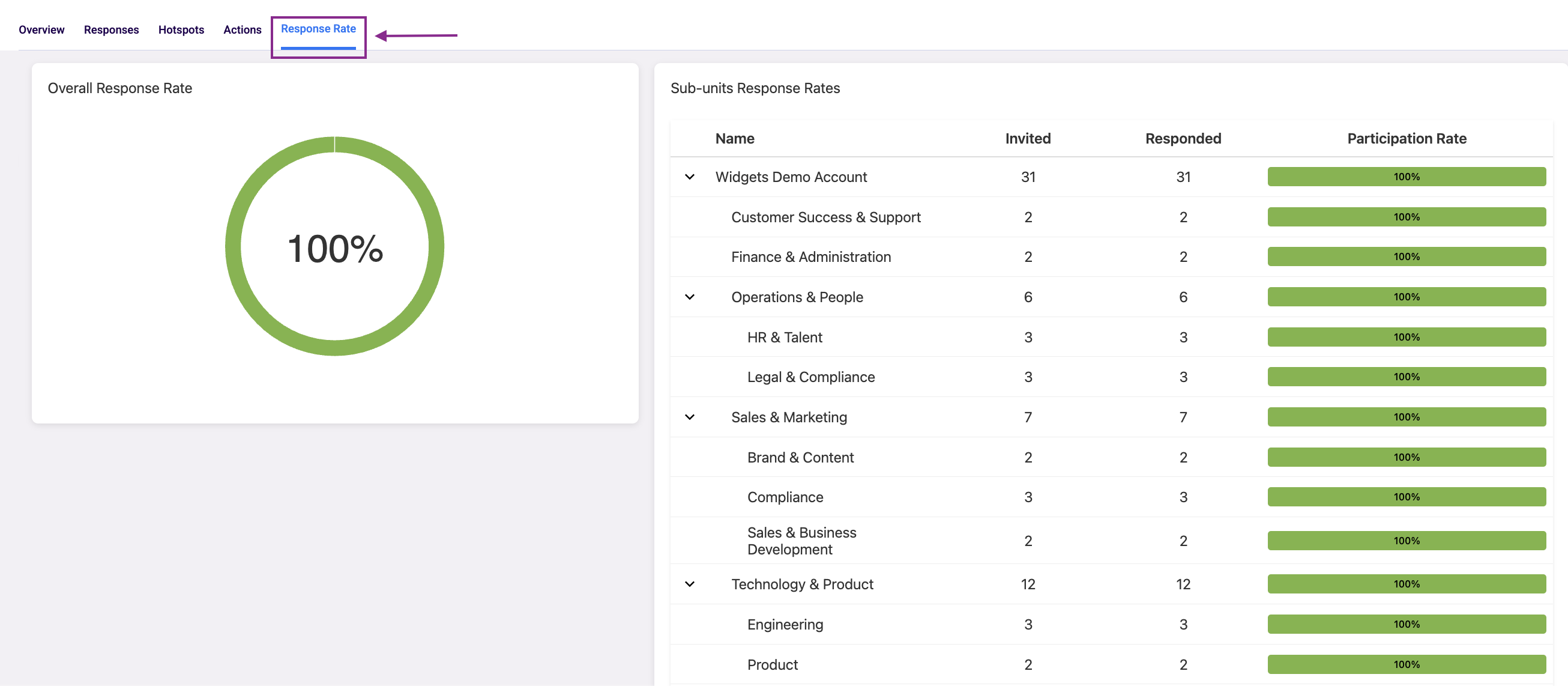
The Response Rate tab is a dashboard view built specifically for tracking survey participation. It shows an overall response rate for the whole entity, plus a breakdown by organisational unit, so you can see engagement trends at a glance.
See How to Navigate the Survey Dashboard Overview.
Giving Your Team Access
Once EngageRocket has enabled the tab for your entity, an Entity Admin still needs to grant access to the right roles under Dashboard Permissions.
Go to Entity Permissions and open the Survey Permissions tab. Find the role you want to update, then click "Edit other permissions." You can choose whether to apply this across all survey projects or to one specific survey.
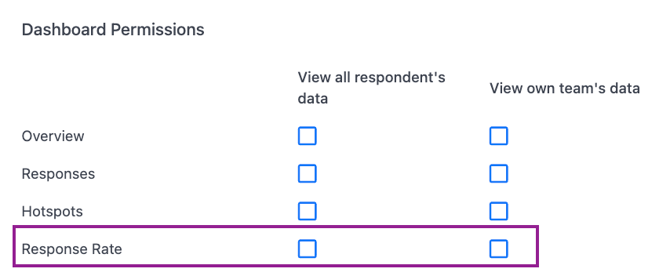
See How to Configure Survey and Dashboard Permissions.
What You'll See on the Tab
A donut chart shows the overall response rate — respondents divided by everyone invited — based on your permissions and any filters you've applied. Further down, a collapsible table breaks results down by organisational unit, with a small bar chart next to each one so you can quickly spot units that need a nudge.
See Understanding Your Dashboard Access Level.
How Response Rate Is Calculated
EngageRocket uses one formula for every response rate shown on this tab: the number of respondents divided by the number of people invited, multiplied by 100. The result is rounded to the nearest whole number and shown as a percentage.
Using This Tab with Historical Surveys
You can open the Response Rate tab for past surveys too, but keep in mind that historical data is usually recorded at 100% participation. This means the breakdown won't tell you much for older surveys — it's most useful for surveys that are currently live.
See Historical Data.
Something Not Working?
I can't see the Response Rate tab at all.
- Likely cause: The tab hasn't been activated for your entity yet. This is done by EngageRocket, not by admins within your account.
- Action: Contact EngageRocket support to request activation.
The tab is enabled for our entity, but I still can't see it.
- Likely cause: Your role's Dashboard Permission for the Responses row hasn't been set, or is set too narrowly.
- Action: Ask your Entity Admin to update the Responses row under Dashboard Permissions for your role, choosing either "View all respondent's data" or "View own team's data" as appropriate.
⚠️ Important: Only Entity Admins can change Survey Permissions and Dashboard Permissions. If you don't have admin access, you won't be able to grant this yourself.
The response rate looks wrong for an old survey.
- Likely cause: Historical surveys are often imported with participation already recorded at 100%.
- Action: Treat historical response rates as a reference only, not an accurate measure of engagement.
The sub-unit table is empty or missing rows.
- Likely cause: Your organisational structure hasn't been set up, or your permissions only cover part of the entity.
- Action: Check your organisational structure setup, or ask your Entity Admin to review your access level.
Still Need Help?
If you have questions about the Response Rate tab, reach out to us at support@engagerocket.co and we'll be happy to assist!