
⚠️ Who is this article for? This guide is for Entity Admins or Project Admins who need to give employees a way to access their survey without an email invitation. If you cannot see the Access Link Hub button on your Survey Projects page, contact your Entity Admin to check your permissions.
Not every employee has a work email address, but they still need a way to complete your survey. The Access Link Hub gives you one link and QR code for your entity, anyone who opens it can enter their Unique ID to reach their own survey. This means you can reach every employee, even those without an email address on file.
💡 Where to start: Make sure every employee has a Unique ID recorded in your Employee List before you share the link, this is what identifies them once they open it.
What Is the Access Link Hub?
The Access Link Hub is a single, shared entry point to your surveys that doesn't rely on email invitations. Instead of each employee receiving a personal email link, everyone uses the same link or QR code, then enters their own Unique ID to reach their assigned survey. You'll find the Access Link Hub button next to the page title on the Survey Projects page.
See Setting Up Survey Projects.
Opening the Access Link Hub and Getting Your Link or QR Code
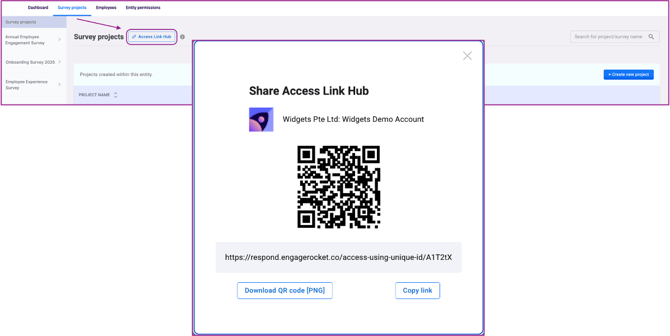
From the Survey Projects tab, click Access Link Hub near the top of the page. A "Share Access Link Hub" window opens, showing your entity name, a QR code, and a link in the format. Click Copy Link to grab the URL for digital sharing, or Download QR Code [PNG] to save an image you can print or display.
See How to Set Up Survey Communications and Launch Your Survey.
How Employees Use the Link
When an employee opens the link or scans the QR code, they'll be asked to enter their Unique ID before they can continue. Once they enter a valid ID, the system matches it to their Employee List record and takes them straight to the survey they're assigned to. If their Unique ID isn't recorded correctly, they won't be able to get through, so accuracy in the Employee List matters here.
See How to Upload and Edit Your Employee List.
Sharing the Link and QR Code
Because access is controlled by each employee's own Unique ID rather than by the link itself, it's safe to share this link and QR code widely, for example on a printed poster, a shared screen, an SMS blast, or a messaging app. Employees without a smartphone can be given the plain link as text instead of the QR code.
See My Survey Link Isn't Working.
Something Not Working?
I don't see the Access Link Hub button on my Survey Projects page.
- Likely cause: Your account role doesn't have permission to access this feature.
- Action: Check with your Entity Admin to confirm your role has the right permissions, or ask them to generate and share the link on your behalf.
⚠️ Important: Only Entity Admins and roles with survey management access can see and use the Access Link Hub. If you manage surveys but still can't see it, this is usually a permissions setup issue, not a bug.
An employee says their Unique ID isn't being accepted.
- Likely cause: Their Unique ID may be missing, misspelled, or entered with different spacing or capitalisation in the Employee List.
- Action: Check their Unique ID in the Employee List, correct it if needed, and ask the employee to try again with the exact ID as it appears in the system.
The QR code won't scan.
- Likely cause: The printed or displayed image may be too small, blurry, or damaged.
- Action: Re-download the QR code from the Access Link Hub and print or display it at a larger size, checking that the image quality is clear.
An employee reaches the link but doesn't see the survey they expect.
- Likely cause: They may not be listed as a recipient on the intended survey, or the survey may not currently be active.
- Action: Confirm the employee is on the correct survey's recipient list and that the survey is live, not unscheduled or completed.
Still Need Help?
If you have questions about the Access Link Hub, reach out to us at support@engagerocket.co and we'll be happy to assist!