
⚠️ Who is this article for? This guide is for Entity Admins who need to add employees to EngageRocket and maintain their data over time. Your Organisational Chart must be uploaded before completing this step. If you haven't done that yet, see the org chart upload guide first.
Your Employee List is the foundation of everything in EngageRocket, it determines who receives surveys, which unit they belong to, which language their survey emails are sent in, and what demographic data is available for filtering your dashboard results.
Uploading Your Employee List for the First Time
- Click on the 'Employees' tab in the top navigation bar.
- Select 'Employee List' from the left-hand panel.
- Click the 'Import' button at the top right of the Employee List page.
- Click 'Download Template' to get a blank copy. Always use the latest template downloaded directly from the platform, do not reuse older versions, as column headers may have changed.
- Fill in the template carefully, following these rules:
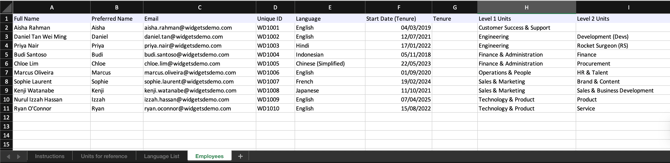
- The template includes read-only reference tabs to help you: Instructions, Units for reference (the units in your Organisational Chart), and Language List (the accepted languages). Enter your data in the Employees tab only.
- Columns A to G are mandatory system columns: Full Name, Preferred Name, Email, Unique ID, Language, Start Date (Tenure), and Tenure. Do not modify the headings or delete these columns, even if certain fields are not in use for your organisation.
- Full Name and Preferred Name are required for every row. Each employee must also have either an Email or a Unique ID.
- Language (Column E) is optional. Enter the language name in English, for example "Japanese", not "日本語". Check the Language List tab for the accepted languages. If you leave it blank, the employee is set to English.
- Date fields such as Start Date must follow the format DD/MM/YYYY exactly. Excel may auto-reformat dates — verify the cell format after entering the data.
- Start Date is required to calculate employee tenure and for employees who will be included in Milestone surveys. Leave the Tenure column blank — it is calculated automatically from the Start Date.
- Custom demographic attributes (e.g. Job Family, Job Grade) can be added in columns after Column G. These will be available as filters on your dashboard. Do not use "Level" at the start of a custom attribute name (e.g. "Level Band"), as this may cause your upload to fail.
- To add date fields other than Start Date, set them up in the platform's Attributes section first. Uploads with new date fields will only be accepted once they have been set up.
- Make sure the file is not password protected, then save it in .xlsx format.
- Upload the file by dragging and dropping it onto the import page, or click to browse and select it manually.
- Review the validation report. Fix any errors flagged and re-upload if needed.
Setting Your Employees' Language
Language is a fixed attribute on every employee's profile. It decides which version of the survey emails each employee receives. For example, an employee set to Japanese receives the Japanese version of the invite and reminder emails, if one has been written.
- Every employee has a language. Employees without one are set to English (Default).
- Language is a built-in system attribute, so it cannot be renamed or deleted like a custom attribute. You can still change the language assigned to each employee.
- You can set an employee's language in bulk using Column E of the import template, or one at a time in the employee's slide-out panel (see Adding or Editing a Single Employee below).
- If an email has not been translated into an employee's language, they receive the English version instead.
💡 Good to know: Users with the Edit employees permission can set and change employee languages. Users with only the View employees permission can see an employee's language but cannot change it. See Understanding Entity and Employee Permission Settings.
💡 Good to know: Writing the emails in each language is done in your survey setup, not here. See How to Set Up Survey Communications and Launch Your Survey.
Updating Your Employee List After the Initial Upload
Once your list is uploaded, you have two options for keeping it up to date. Choose the right one based on your situation.
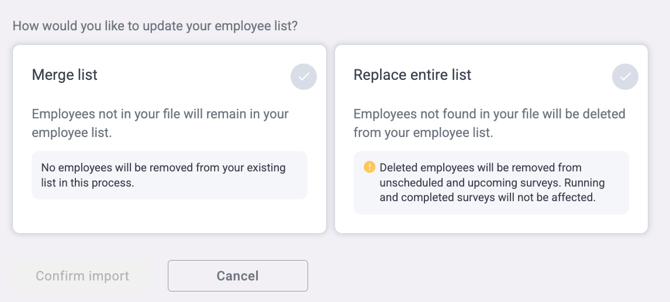
Option A: Merge List — Recommended for Most Updates
Use Merge List when you want to add new employees or update existing employee details, including their language, without removing anyone from the current list. This is the safest option for routine updates.
- Download a fresh template or export your current employee list from the platform.
- Add new employees or update attributes for existing ones.
- Upload the file using the 'Merge List' function. New employees will be added, existing records will be updated, and no one will be removed.
Option B: Replace Entire List — Use With Caution
Use Replace Entire List only when you have a completely new employee dataset that should replace all existing records.
- Prepare a complete and final employee list that includes every employee who should remain in the system.
- Upload using the 'Replace Entire List' function.
⚠️ Important: Replace Entire List will permanently remove all employees not included in your upload file. Any historical survey data linked to removed employees will be affected. Use this option only when absolutely necessary and always double-check your file before uploading.
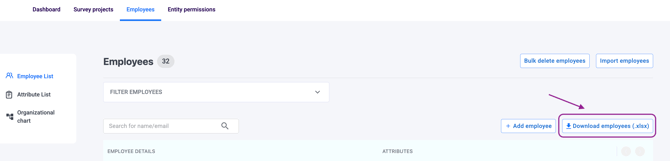
Need to update your employee list in the future? Simply click Download employees button make your edits, and upload it back, no need to start from scratch!
Adding or Editing a Single Employee
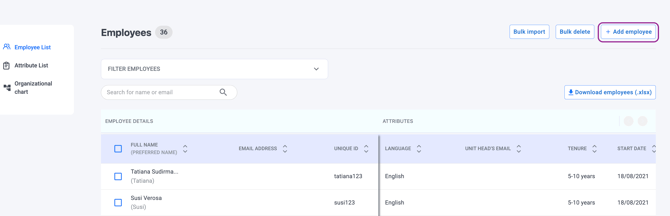
- To add one employee manually: Go to the Employee List, click 'Add Employee', fill in their details in the slide-out panel, including their Language, and click 'Save changes'.
- To edit an existing employee: Find them in the Employee List, click on their name to open their profile, update their details, including their Language if needed, and click 'Save changes'.
Something Not Working?
Upload fails with a 'Unit Code not found' error.
-
Likely cause: The unit assigned to an employee in your file does not match any unit in your Organisational Chart.
-
Action: Check for spelling differences, extra spaces, or capitalisation mismatches between the unit names in your Employee List and your Organisational Chart. See the org chart guide for reference.
Upload fails with a duplicate email error.
- Likely cause: An employee appears more than once in the file, or the same email is listed in slightly different formats.
- Action: Check for duplicate rows and ensure each employee has a unique email address before re-uploading.
Upload fails because a language is not recognised.
- Likely cause: The language is written in its own script (e.g. "日本語"), spelled differently from the accepted list, or not supported.
- Action: Enter the language name in English exactly as it appears in the template's Language List tab (e.g. "Chinese (Simplified)", "Portuguese (Brazil)"), then re-upload.
Tenure is not calculating correctly.
- Likely cause: The Start Date is not in the correct format, or Excel has auto-reformatted the date.
- Action: Ensure Start Date is entered as DD/MM/YYYY exactly. Check the cell format in Excel after entering the data to confirm it has not been auto-converted.
An employee is receiving survey emails in English instead of their language.
-
Likely cause: The employee has no language assigned, or the email has not been translated into their language.
-
Action: Open the employee's profile and check their Language. If it is correct, ask your survey admin to check that the email has been written in that language. See How to Set Up Survey Communications and Launch Your Survey.
I cannot change an employee's language.
-
Likely cause: Your role has the View employees permission but not Edit employees.
-
Action: Ask your Entity Admin to update your role permissions. See Understanding Entity and Employee Permission Settings.
I used Replace Entire List by mistake and lost employee data.
-
Likely cause: Replace Entire List was used when Merge List was intended.
-
Action: Contact our support team at support@engagerocket.co immediately and do not make any further changes. Data recovery may be possible depending on how recently the upload occurred.
I'm not sure whether to use Merge List or Replace Entire List.
-
Action: Use Merge List for all routine updates (adding or editing employees). Only use Replace Entire List when you need to completely overwrite all existing records with a new dataset.
Still Need Help?
If you are having trouble uploading or updating your employee list, reach out to us at support@engagerocket.co and we'll be happy to assist!