
⚠️ Who is this article for? This guide is for survey administrators setting up or editing a Pulse or One-off survey.
After setting up your questionnaire, the next step is defining who will receive the survey. For Pulse and One-off surveys, recipients are selected from your Employee List. Keeping that list accurate is essential — the Recipients page pulls directly from it, so outdated data will lead to the wrong people receiving your survey.
💡 Where to start: Make sure your Employee List is up to date before selecting recipients. Any employee you want to add must already exist in the Employee List before they can be added to a survey.
Adding Recipients
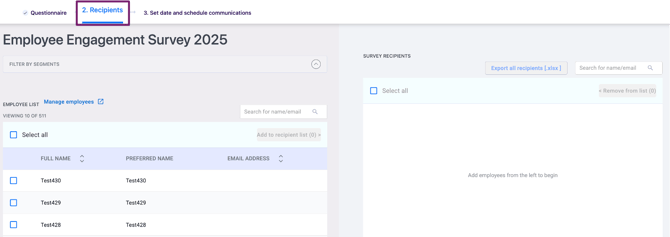
After completing your questionnaire setup, you will land on the Recipients page automatically. You can also navigate back to it manually from within your survey at any time. On the left panel, browse or search for employees, tick the checkbox next to each name you want to include, and use Select All to include everyone currently displayed. Use the filter options to narrow your selection by segment — such as department, location, or employment status — then click Add to Recipient List. The selected employees will appear in the Survey Recipients panel on the right, confirming they have been added.
See how to upload and edit your Employee List.
Managing and Editing Recipients
You can adjust your recipient list at any time before or after the survey goes live. To remove a recipient, find them in the Survey Recipients panel on the right and click the remove icon next to their name. To export your full recipient list, click Export on the right panel to download an Excel file. Once your list is finalised, click Save and Continue to move on to the Communications setup.
See how to set up survey communications and launch your survey.
Adding an Employee Not Yet in the Employee List
If the person you need to add does not appear in the Employee List, you must add them there first before they can be selected as a recipient. Click Import Employee on the Recipients page, then either download the Excel template to add multiple employees in bulk, or click Add Manually to add one person at a time using the slide-out panel. Fill in their details and click Save Changes — they will then appear in the Employee List and can be added to the survey.
⚠️ Important: Always check that the data you enter is accurate. Employees must exist in the Employee List before they can be added as survey recipients.
See how to upload and edit your Employee List.
Something Not Working?
An employee I need to add is not appearing in the Recipient List.
- Likely cause: The employee has not yet been added to the main Employee List.
- Action: Go to the Employees section, add them there first, then return to the Recipients page to include them in the survey.
I need to update the recipient list after the survey is already live.
- Likely cause: Recipient changes are still possible after launch, but carry a risk of confusion.
- Action: You can add or remove recipients after the survey goes live. However, if someone has already received an invitation, removing them may cause confusion — consider carefully before making changes.
The recipient list is showing the wrong employees.
- Likely cause: Your Employee List may be outdated or contain incorrect data.
- Action: Update the Employee List first, then return to the Recipients page and refresh to see the corrected data.
Still Need Help?
If you have questions about managing survey recipients, reach out to us at support@engagerocket.co and we'll be happy to assist!