
⚠️ Who is this article for? This guide is for Entity Admins who need to assign managers or team leaders as Unit Heads in EngageRocket. Unit Heads must be set up after your organisational chart has been uploaded. If you haven't done that yet, start here first.
Unit Heads are managers or team leaders who are given access to view survey results and participation rates for their specific unit. This article explains how to invite Unit Heads to the platform and manage their assignments in the Organisational Chart.
💡 Before you begin: A person must be registered in EngageRocket before they can be assigned as a Unit Head. If they are not yet in the system, use the 'Invite Unit Heads' button to send them an invitation. They will need to accept the invitation and activate their account before you can assign them as a Unit Head.
Option A: Inviting Unit Heads in Bulk
Use this method when you need to assign multiple Unit Heads at once.
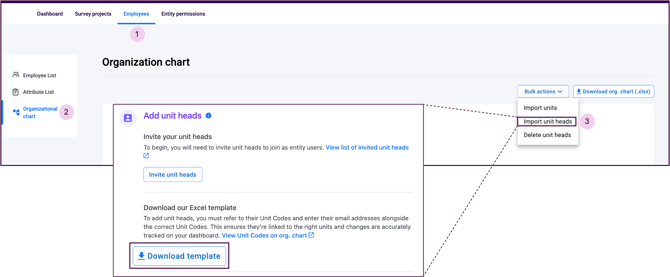
- Navigate to Employees > Organisational Chart from the top navigation bar.
- Click 'Bulk Actions', then select 'Import Unit Heads' from the dropdown.
- Click 'Download Template' to get the Excel import file.
-
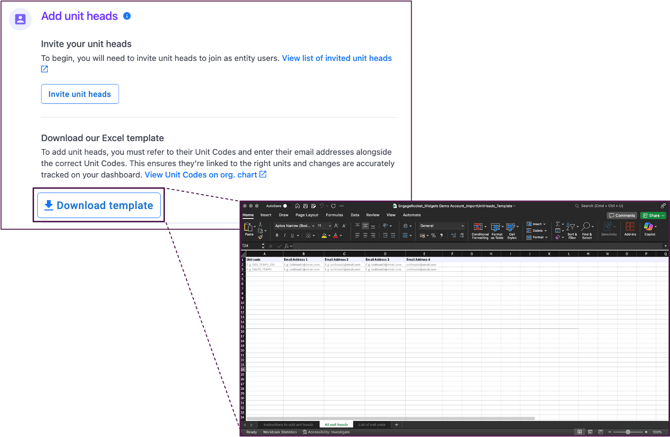
Fill in the template:
- In the Unit Code column, enter the unique code for each unit. (Find Unit Codes under Employees > Organisational Chart > Bulk Actions > Import Units > List of Unit Codes tab.)
- On the same row, enter the email address of the Unit Head to assign to that unit.
- To assign multiple Unit Heads to the same unit, add additional rows with the same Unit Code.
- Save the file in .xlsx format and upload it back via the same import page.
Each invited Unit Head will receive an email invitation to join EngageRocket. Once they accept and activate their account, they will have access to their unit's dashboard and participation data.
Option B: Managing Unit Heads for a Specific Unit
Use this method to add or remove a Unit Head for a single unit directly from the Organisational Chart.
- Find the unit on the Organisational Chart and click on the unit head count displayed on the unit's card — for example, '1 Unit Head'. This opens the Unit Head Drawer on the right side of the screen.
- To add a Unit Head: Click 'Add a Unit Head' inside the drawer. Search for the user by name or email and confirm the assignment.
- To remove a Unit Head: Click the remove icon next to their name in the drawer. They will immediately lose access to that unit's dashboard.
💡 Good to know: You can only add or remove Unit Heads from the drawer when accessing it from the main Organisational Chart tab. If you are viewing the chart as part of the 'Review' step during an import, the drawer will be view-only.
What Unit Heads Can See
After being assigned, a Unit Head will have access to view the survey dashboard and participation rates for their assigned unit only. By default, they cannot see other units or organisation-wide results.
Their access level can be adjusted via the Dashboard Permissions settings. See the Entity Permissions guide for more details.
Something Not Working?
The user I want to assign as Unit Head is not appearing in the search.
- Likely cause: The person has not yet been registered in EngageRocket.
- Action: Use the 'Invite Unit Heads' button to send them an invitation and wait for them to activate their account before assigning them.
A Unit Head says they can see more data than expected.
- Likely cause: Their Dashboard Permissions may be set to 'View all respondents data' instead of 'View own team's data'.
- Action: Check and update their Dashboard Permissions in the Entity Permissions settings. See the Entity Permissions guide here.
I assigned the wrong person as Unit Head.
- Likely cause: Incorrect user was selected during assignment.
- Action: Open the Unit Head Drawer for that unit, click the remove icon next to the incorrect person, then add the correct person.
A Unit Head is not receiving their invitation email.
- Likely cause: The email may have been filtered or the wrong address was entered.
- Action: Ask the Unit Head to check their spam or junk folder. If the email address is incorrect, remove the incorrect entry and re-invite using the correct address.
Still Need Help?
If you are having trouble inviting or managing Unit Heads, reach out to us at support@engagerocket.co and we'll be happy to assist!