
⚠️ Who is this article for? This guide is for Entity Admins who have already uploaded an organisational chart and need to make changes to their unit structure. If you have not yet uploaded your org chart, start here instead.
After your organisational chart has been uploaded, each unit is assigned a unique Unit Code by the system. Whenever you need to make changes, whether adding a new department, removing one, or renaming an existing unit, you will always use these Unit Codes to ensure the system updates the correct entries and preserves your reporting hierarchy.
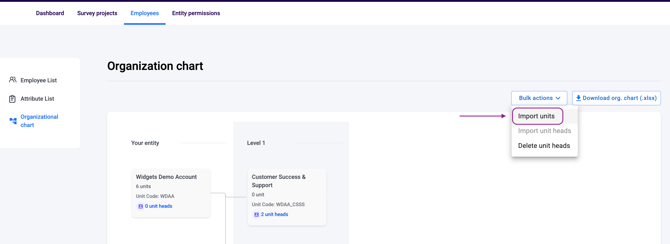
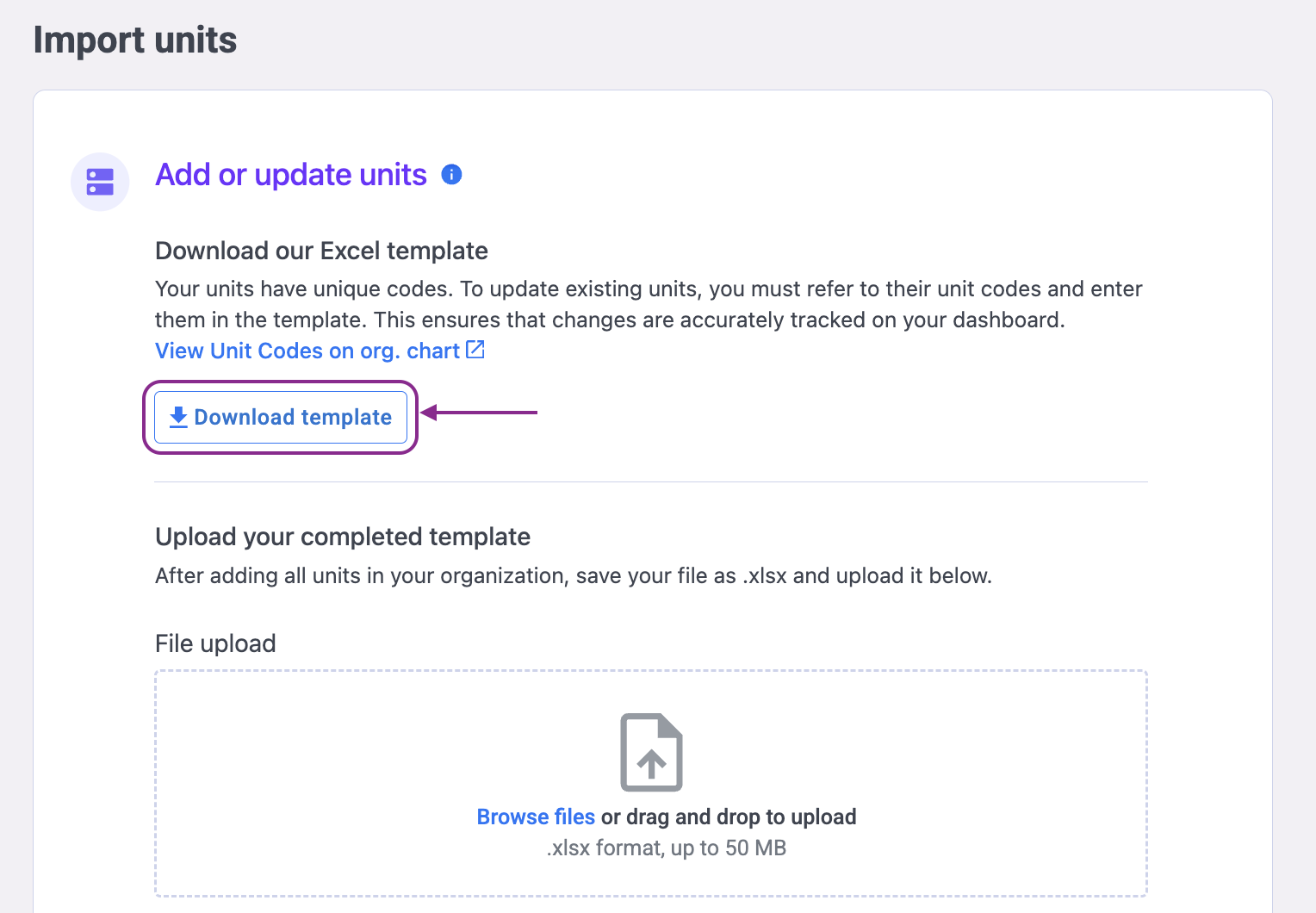
💡 Where to find Unit Codes: Navigate to Employees > Organisational Chart > Bulk Actions > Import Units and download the template. The 'List of Unit Codes' tab in the template contains a full list of all existing units and their assigned codes.
How to Make Changes to Your Org Chart
All changes are made using the same Import Units function used during the initial upload. The general process is:
- Navigate to Employees > Organisational Chart > Bulk Actions > Import Units.
- Download the template.
- Make your changes in the file following the relevant scenario below.
- Save the file in .xlsx format and re-upload it.
Download template page
Use the scenarios below as a guide for each type of change.
Adding a New Unit
In the template, fill in the full path from the top-level unit down to the new unit. For example, to add a new Level 3 unit, fill in the Level 1 and Level 2 unit names in their respective columns, followed by the new Level 3 unit name.
Leave the Unit Code column blank. A blank Unit Code tells the system this is a new unit that does not yet exist.
💡 Tip: Unit names must match exactly — including capitalisation, punctuation, and spacing — what is already in your existing org chart and Employee List.
Removing an Existing Unit
⚠️ Before removing a unit: Make sure no employees are currently assigned to the unit you are removing. Removing a unit with active employees may cause data issues. Reassign those employees to a different unit first.
- Open the 'List of Unit Codes' tab in the template and find the Unit Code of the unit you want to remove.
- In the template, enter the Unit Code in Column A and leave the unit name columns blank.
- A blank unit name with a Unit Code signals to the system that the unit should be removed.
Renaming an Existing Unit
- Open the 'List of Unit Codes' tab and locate the Unit Code for the unit you want to rename.
- In the template, enter the Unit Code in Column A and update the unit name in the relevant level column.
- If you are renaming a parent unit, you must also include all of its child units in the same file to preserve the hierarchy — do not leave child units out.
⚠️ Important: Errors in parent-level unit names can affect the structure of all child units beneath them. Always double-check your file for completeness before uploading.
Something Not Working?
My upload is not reflecting the changes I made.
- Likely cause: An incorrect or mismatched Unit Code was used.
- Action: Check that you entered the correct Unit Code for the unit you were editing. Unit Codes are case-sensitive and must match exactly as shown in the 'List of Unit Codes' tab.
I renamed a parent unit and the child units disappeared.
- Likely cause: Child units were not included in the upload file.
- Action: When renaming a parent unit, all of its child units must be included in the same upload file. Re-upload with all child units included.
I removed a unit by mistake.
- Likely cause: Unit was removed unintentionally during an upload.
- Action: Contact our support team at support@engagerocket.co as soon as possible and do not make any further changes. Depending on timing, the unit may be recoverable.
I'm not sure which Unit Code to use for a unit.
- Action: Download the latest template from Employees > Organisational Chart > Bulk Actions > Import Units. The 'List of Unit Codes' tab will show all current units and their assigned codes.
Still Need Help?
If you are having trouble editing your organisational chart, reach out to us at support@engagerocket.co and we'll be happy to assist!