
When should you use Historical Data Import?
You can use this feature when you want to:
-
Show trends by comparing past and future surveys
-
Reorganise or regroup existing survey data
-
Reuse past data for testing, training, or different stakeholder access
Step 1: Prepare your Organisation Structure (Required)
Before importing any survey data, make sure your organisation structure is already set up correctly.
What to do:
-
Go to Organisation Chart → Bulk Actions → Import Units
-
Upload your full org structure (Level 0 to Level N)
-
Ensure unit names match exactly with what you’ll use in the survey file (capital letters, spacing, punctuation)
⚠️ If a unit does not exist in the org structure, its data will not appear correctly on the dashboard.

Step 2: Choose where to upload your survey
You have two options:
Option A: Create a new survey project (Recommended)
Best for importing historical data from scratch.
Steps:
-
Go to Projects
-
Click Create New Project
-
Name your project (e.g. Employee Engagement Survey)
-
Select One-off survey
-
Set the confidentiality threshold
-
Create the project
-
Go to the Surveys tab and delete the default blank survey
This ensures your historical survey becomes the first survey in the trend sequence.
Option B: Use an existing survey project
Use this if you want to:
-
Add data to an existing survey series, or
-
Re-upload data for regrouping or access changes
Step 3: Download and fill in the import template
Inside your chosen project:
-
Click Import Historical Survey (top-right corner)
-
Download the Excel template
-
Fill in the required tabs:
-
Survey Info: survey name (required)
-
Survey Questions: questions, types, and dimensions
-
Option Rating Scale / Choices: answer options
-
Responses: actual survey responses including Org Structure & Demographics

Tip: Each tab includes guidance to help you complete the template correctly. Always start with the Instructions tab to understand the overall structure before filling in other tabs such as Survey Info and Survey Questions.
Step 4: Upload and validate your file
Once your file is ready:
-
Go back to Import Historical Survey
-
Upload the completed Excel file
-
Review validation results
-
Errors will be highlighted if something needs fixing
-
If valid, confirm to start the import
-
For large datasets, the import process may take up to 60 minutes.

Step 5: Verify your dashboard results
After the import is complete:
-
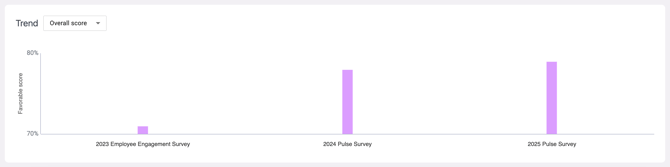
Check the trend chart to confirm survey order and response count
-
Drill down into unit dashboards
-
Validate key metrics (e.g. % favourable, eNPS)
-
Test demographic filters such as department or tenure
Repeat the same steps for additional historical surveys, always uploading from oldest to newest.
Quick checklist before you upload
-
Org structure is uploaded first
-
Unit names are consistent
-
Surveys are uploaded in chronological order
-
Column headers are unchanged
-
All required fields are completed
If you have any questions or need further assistance, feel free to reach out to us at support@engagerocket.co We're here to help!