
⚠️ Who is this article for? This guide is for Entity Admins and users with a custom role that grants survey management access. You must have an existing survey project before starting. If you have not created one yet, see How to create a survey project first.
The Questionnaire page is where you define the questions that will capture insights from your participants. It gives you all the tools needed to ensure your data collection is clear, culturally relevant, and analytically meaningful. The questionnaire setup is split across three tabs — Questions, Translations, and Tag Dimensions & Set Up Overall Score. Work through each tab in order and click Save and Continue at the end of each to progress.
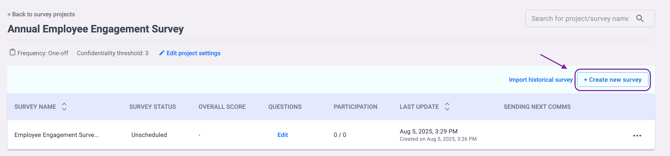
💡 Good to know: If this is your first survey project, you will be directed to the Questionnaire page automatically after setup. For any additional surveys within the same project, click +Create New Survey to get started.
Tab 1: Questions
Step 1: Choose your starting point
You have two options for building your questionnaire. Option A — Use EngageRocket's question library (recommended): choose from templates featuring research-backed questions curated by our People Science team, designed to provide meaningful insights into employee engagement. Option B — Build your own questions: click I have my own questions to go to the custom questions page and build a survey aligned with your specific goals.
Step 2: Personalise the survey experience
From this page you can also customise the participant experience — edit the Survey Name, Welcome Message, and Thank You Message, and upload your company logo to the Survey Header to create a branded entry point.
Step 3: Understand your question types
EngageRocket supports six question types:
- Rating Scale — Respondents rate something on a predefined scale. You can customise both the numeric range (e.g. 1–5 or 1–10) and the value descriptions (e.g. Strongly Disagree to Strongly Agree). Rating scale questions can contribute to an Overall Score on your dashboard.
- eNPS (Employee Net Promoter Score) — Measures employee loyalty on a 0–10 scale. Respondents are categorised as Promoters (9–10), Passives (7–8), or Detractors (0–6). Best paired with an open-ended follow-up question.
- Yes / No — A simple binary question for clear, factual data where no nuance is needed.
- Single Choice — Respondents select one answer from a list. Consider including a Not applicable option to avoid forcing an answer that doesn't fit.
- Multiple Choice — Respondents can select more than one answer. You can define how many options participants must select, and include an optional Other field for open-ended responses.
- Open Ended — Free-text responses, ideal for qualitative feedback. Use sparingly to avoid survey fatigue and place after a related rating question.
⚠️ Important: The same rating scale options apply to all rating scale questions in a survey — changing the options for one question will affect all others.
Step 4: Configure each question
For each question, enter the question text and customise labels or answer options where applicable, then set the question as mandatory or optional. You can also set up Conditional Logic — questions can appear or stay hidden based on a respondent's earlier answers or their employee segment, and you can make questions required only when specific conditions are met.
See the full guide to Conditional Logic.
Once you are satisfied with your questions, click Save and Continue to move to the Translations tab.
Tab 2: Translations
To make your survey accessible to a diverse audience, the Translations tab lets you offer it in multiple languages. Select the languages you need from the panel on the right. Questions from EngageRocket's template library are translated automatically, any custom questions, the survey title, and the thank you message will need to be translated manually. Once translations are complete, click Save and Continue.
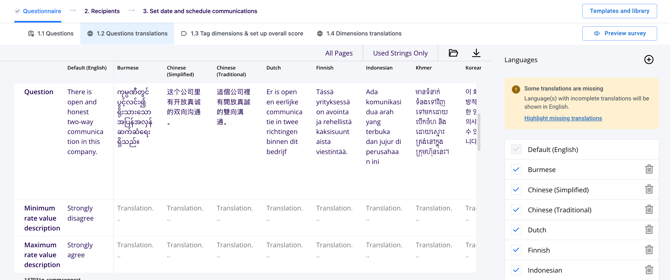
Once translations are complete, click Save and Continue.
⚠️ Important: If a dimension is missing a translation, it is flagged on the Dashboard Access and Action Suggestions email screens on the Communications page. Untranslated dimensions are shown in English.
Tab 3: Tag Dimensions & Set Up Overall Score
This tab is where you organise your data for deeper analysis. Assign Dimensions to your questions — dimensions are category tags that group related questions by key themes such as leadership, communication, or engagement, making it easier to analyse results on your dashboard.
💡 Good to know: Questions added from the question library come with dimensions automatically applied. You can review and update these at any time to better suit your reporting needs.
For Rating Scale questions, configure the Overall Score — a calculated metric that gives a high-level view of overall sentiment or performance, helping you track trends and benchmark progress across teams or time periods. Once complete, click Save and Continue to move to the Dimensions Translations tab.
💡 Good to know: Questions added from the question library come with dimensions automatically applied. You can review and update these at any time to better suit your reporting needs.
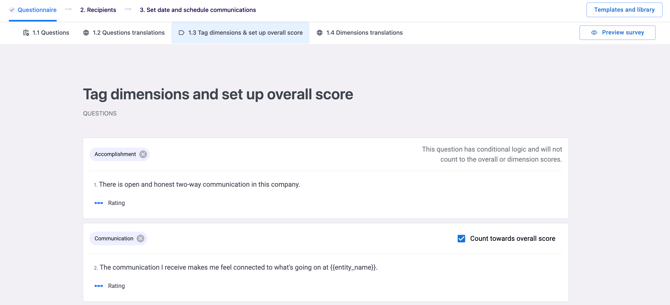
For Rating Scale questions, configure the Overall Score — a calculated metric that gives a high-level view of overall sentiment or performance, helping you track trends and benchmark progress across teams or time periods. Once complete, click Save and Continue to proceed to the Recipients page.
Tab 4: Dimensions Translations
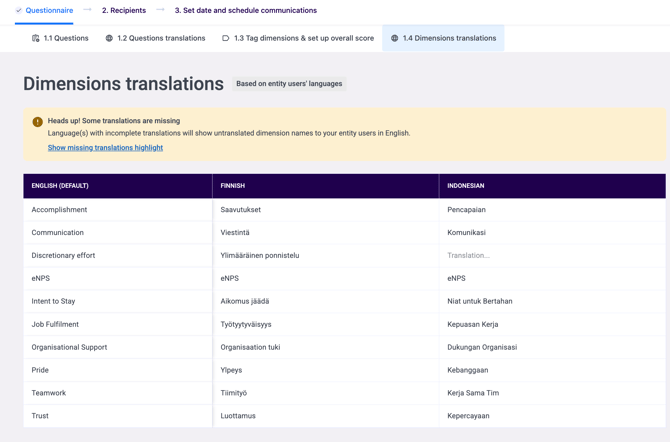
This final tab lets you translate your dimension names so they appear in each viewer's language on the dashboard and in dimension-related emails.
Dimension translations are set once per entity, not per survey. Any translation you enter here applies to every survey in the entity, and duplicated surveys keep their translations.
⚠️ Important: If a dimension is missing a translation, it is flagged on the Dashboard Access and Action Suggestions email screens on the Communications page. Untranslated dimensions are shown in English.
Once complete, click Save and Continue to proceed to the Recipients page.
Something Not Working?
My custom questions are not showing translated versions.
- Likely cause: Only library questions are translated automatically. Custom questions, the survey title, and the thank you message are not.
- Action: Go to the Translations tab and manually enter translations for all custom content.
The Overall Score is not appearing on my dashboard.
- Likely cause: No rating scale questions have been configured to contribute to the Overall Score.
- Action: Go to the Tag Dimensions & Set Up Overall Score tab and ensure at least one rating scale question has the Overall Score setting enabled.
Dimension names are not translated on the dashboard.
- Likely cause: Dimension translations have not been entered for this entity. Translations can only be added during survey setup, not on the dashboard.
- Action: Go to the Dimensions Translations tab and enter a translation for each dimension.
Conditional logic is not behaving as expected.
- Likely cause: The condition may reference the wrong preceding question, or the answer value may not match exactly.
- Action: Open the Conditional Logic settings and verify the correct question and answer value are selected. Use Preview Survey to test the logic before launching. See the Conditional Logic guide for full details.
I cannot find the question library after choosing to build from scratch.
- Likely cause: The library is not shown by default once you have selected the build-from-scratch option.
- Action: Click Templates and library at any point within the questionnaire builder to access the question library.
Dimensions are missing from my custom questions.
- Likely cause: Dimensions are applied automatically to library questions only — custom questions do not have dimensions pre-assigned.
- Action: Go to the Tag Dimensions & Set Up Overall Score tab and manually assign a dimension to each custom question.
Still Need Help?
If you have questions about setting up your survey questionnaire, reach out to us at support@engagerocket.co and we'll be happy to assist!