
⚠️ Who is this article for? This guide is for users with dashboard access who want to understand and navigate the standard Survey Dashboard. If you cannot see the dashboard or certain tabs are missing, your access level may be restricted, see Understanding your dashboard access level. If your organisation uses a custom dashboard built specifically for you, some content here may not apply. See Standard vs. Custom Dashboards below.
The Survey Dashboard is where you view your survey results. The Overview tab gives you a high-level picture of how your survey is performing, from overall scores and participation through to trend comparisons and open-ended themes. Results are visible as soon as responses start coming in, so you can monitor progress while the survey is still running.
💡 Good to know: You can view dashboard results at any time — while the survey is live, or after it has closed. Results update in real time as responses are submitted.
Getting to Your Dashboard
After logging in, navigate to the Survey Projects section from the top navigation bar. Select the project and then the survey you want to view results for — you will land on the Dashboard Overview tab automatically. To switch between surveys, use the dropdown menus at the top of the page to select a different survey project or survey name, and results will update immediately.
Viewing the Dashboard in Your Language
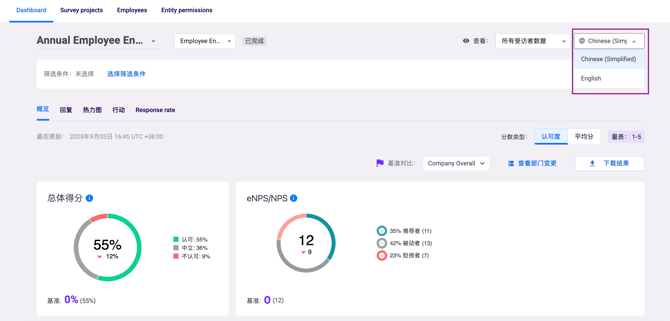
The dashboard is shown in the language set for you by your Entity Admin. For example, a user set to Chinese (Simplified) will see the dashboard in Chinese (Simplified).
- Buttons, tabs and labels are always shown in your language.
- Survey content — the survey name, questions, answer options, and dimension names — is shown in your language if a translation has been added. Any item without a translation is shown in English.
Switching between your language and English
Use the language selector (🌐) at the top right of the dashboard to switch views. You can switch between your own language and English only.
- Your choice stays active while you move around the dashboard during the current session.
- When you log out and log back in, the dashboard returns to your own language.
- If your language is English, or no language has been set for you, the dashboard is shown in English and the language selector is not available.
💡 Good to know: Translations are added during survey setup, not on the dashboard. If something isn't showing in your language, it's usually because no translation was entered for it. Survey admins can add translations in the Questions Translations and Dimensions Translations tabs — see How To Set Up Your Survey Questionnaire.
⚠️ Not translated yet: Historical (imported) surveys, custom attributes and segments, and unit names are currently shown in English for everyone.
💡 Good to know: Your language is set on the Entity Users page and can be different in each entity you have access to. To change it, contact your Entity Admin — see How to Invite and Manage Entity Admin Users.
What You Will See on the Overview Tab
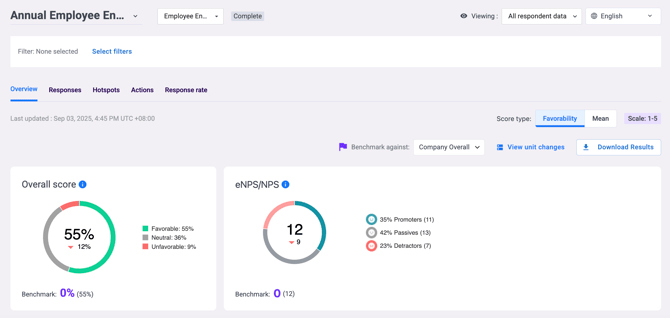
The Overview tab brings together the most important metrics in one place. Here is what each section shows:
Choosing a Score Type: Favourability or Mean
If your account has both scoring types enabled, you'll see a Score Type pill at the top right of the dashboard. Use it to toggle between two ways of viewing your results:
- Favourability (default) — the percentage of employees who gave a positive response.
- Mean — the average rating for your questions, shown on your survey's original scale (e.g. a score of 4.20 on a 1–5 scale).

Your selection stays active as you move between tabs, but will reset when you switch to a different survey.
💡 Good to know: At the question level, Mean is the sum of all response values divided by the number of respondents. At the Dimension and Overall level, it's calculated by averaging the already-rounded question scores, with every question weighted equally. If you calculate this manually from raw data, you may see a tiny difference (0.01–0.02) from the dashboard due to this rounding sequence.
Overall Score — by default, the percentage of favourable responses (scores of 4 or 5) across all rating scale questions set to contribute to the overall score. Switch the Score Type pill to Mean to see the average rating instead, calculated on your survey's original scale. This gives you a quick snapshot of how the survey is performing as a whole.
eNPS (Employee Net Promoter Score) — if your survey included an eNPS question, this shows how likely employees are to recommend your organisation as a place to work. Scores range from -100 to +100.
Top and Bottom Dimensions — highlights the strongest-performing dimension and the one needing the most attention, based on responses received so far. Useful for quickly identifying what is going well and where to focus.
Participation — shows the current response rate — the total number of responses submitted out of the total number of recipients. This updates in real time while the survey is live.
⚠️ Important Note - Historical Surveys: If your survey data is historical/imported data, no participation rate will appear in the Overview tab. This is expected behavior as historical data does not carry participation rate information in this section. To view participant counts for specific attributes in historical surveys, use the Hotspots tab and apply filters.
Trend Analysis
Scroll down on the Overview tab to find the Trend Analysis chart. This shows how your scores have changed across multiple surveys within the same project, giving you a visual history of progress over time. Use the dropdown at the top of the chart to switch between Overall Score, eNPS, or a specific Dimension. The x-axis shows the timeline of surveys (e.g. Pulse Survey January 2025) and the y-axis shows the percentage of favourable scores for the selected metric. If you switch to Mean, the y-axis automatically shows raw average scores instead — and any past survey that used a different rating scale will be excluded from the chart, so you're always comparing apples to apples. Hover over any data point to see the exact score and respondent count for that survey period.
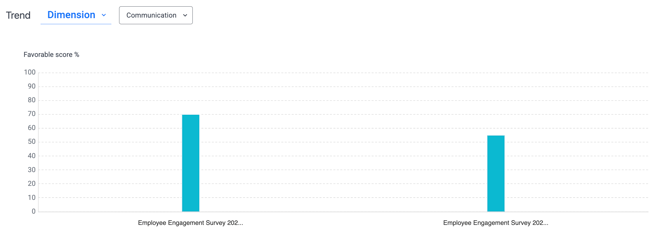
💡 Good to know: Trend data only appears when there are at least two surveys with responses within the same project. If you only have one survey, the trend chart will not yet have comparative data to display.
Topics from Open-Ended Questions
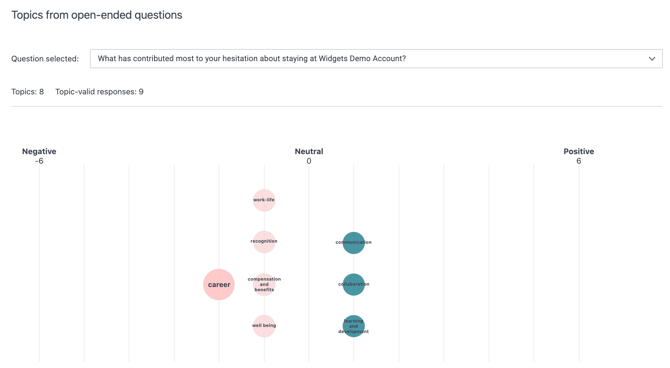
If your survey included open-ended questions, a bubble chart will appear below the trend analysis. This chart automatically groups employee responses into themes and shows sentiment at a glance. Bubbles on the right side represent topics with more positive sentiment, while bubbles on the left represent topics with more negative sentiment. Larger bubbles represent topics mentioned more frequently by employees. Use this chart alongside the detailed open-ended responses in the Responses tab for deeper context.
See how to view and analyse your survey responses.
Navigating Between Dashboard Tabs
The dashboard has three main tabs — use these to explore your results in more depth:
- Overview — high-level scores, trends, participation, and open-ended themes (this tab)
- Responses — detailed question-by-question breakdown, eNPS distribution, and open-ended answers. See how to view and analyse your survey responses
- Hotspots — visual heat map highlighting highest and lowest scoring areas by segment. See how to use hotspots for targeted insights
- Actions (optional): review dimension scores, explore action suggestions, and track Action Plans. This tab appears only if the ACT module is enabled for your entity. See What is the ACT Module and how does it work?
- Response Rate (optional): participation broken down by organisational unit. This tab appears only if it has been enabled by EngageRocket for your entity. See How to use the Response Rate tab in your survey dashboard.
💡 Standard vs. Custom Dashboards
- Standard dashboard: The Survey Dashboard described in this article, with the tabs listed above. It is available to every EngageRocket entity and is covered in our Resources articles.
- Custom dashboard: A dashboard built specifically for your organisation, with its own tabs, charts or metrics. Custom dashboards are not covered in our Resources articles. For help, contact support@engagerocket.co.
- Custom permission roles: These control what data you can see on the standard dashboard, such as your own unit only or the whole organisation. They do not create a custom dashboard. See Understanding your dashboard access level.
Something Not Working?
My dashboard shows no data even though responses have been submitted.
Likely cause: Results may still be processing, or your account may not have dashboard access configured.
Action: Allow a few minutes for results to process and refresh the page. If data is still missing, contact support@engagerocket.co with the survey project name.
I don't see participation rates in the Overview tab.
Likely causes:
- Your survey data is historical/imported data rather than a live survey within EngageRocket
- The survey is confidential and didn't meet the minimum response threshold
Action:
- For historical surveys: No participation rate data appears in the Overview tab for historical surveys. This is expected behavior—historical data does not carry participation rate information under this specific tab. To see participant counts for specific attributes, use the Hotspots tab and apply filters.
- For live surveys: Check if your survey meets the confidentiality threshold set by your organization. If responses fall below the minimum (often 3), results are hidden to protect respondent confidentiality.
I can see the dashboard but some tabs are missing.
-
Likely cause: Specific tabs require certain permission settings that may not be enabled for your account.
-
Action: Ask your Entity Admin to check your Dashboard Permissions. See Understanding your dashboard access level.
I see tabs, charts or metrics that aren’t described in this article.
- Likely cause: Your organisation may be using a custom dashboard built specifically for you.
- Action: Contact support@engagerocket.co, and our team will help you with your custom dashboard.
The trend chart shows only one data point.
-
Likely cause: Trend data requires at least two surveys with responses within the same project.
-
Action: Complete a second survey within the same project to enable trend comparisons.
I cannot find the survey I am looking for.
-
Likely cause: You may be looking in the wrong project, or the survey may not have any responses yet.
-
Action: Use the dropdown menus at the top of the dashboard to switch between survey projects and survey names.
Still Need Help?
If you have questions about navigating your survey dashboard, reach out to us at support@engagerocket.co and we'll be happy to assist!