
⚠️ Who is this article for? This guide is for Entity Admins completing the historical survey import template. This article covers how to fill in each sheet correctly. For the full import process, see How to import historical survey data.
The Historical Data Import template contains 6 sheets. Three are always required, and three are conditional depending on your survey setup. This article explains what to fill in for each sheet and the common mistakes that cause validation errors.
💡 Where to start: Always begin with Survey_Info, then move to Survey_Questions, then the relevant option sheets, and finish with Responses. Completing them in this order will help you avoid errors.
Overview of All 6 Sheets
Required — always fill these:
- Survey_Info — the name of your historical survey as it will appear on the dashboard
- Survey_Questions — the structure and questions of your past survey
- Responses — the individual respondent submissions
Conditional — only fill if your survey includes these question types:
- Option_Rating_Scale — required if you have rating scale questions
- Option_Multiple_Choices — required if you have multiple choice questions
- Option_Single_Choice — required if you have single choice questions
Step 1: Fill In Survey_Info (Required)
This sheet has just one field — the name of your survey. Enter the full name exactly as you want it to appear in EngageRocket. Alphanumeric and special characters are allowed. Use a clear and specific name that includes the year or survey round — for example, 2025 Employee Engagement Survey — especially if you are uploading multiple historical surveys.
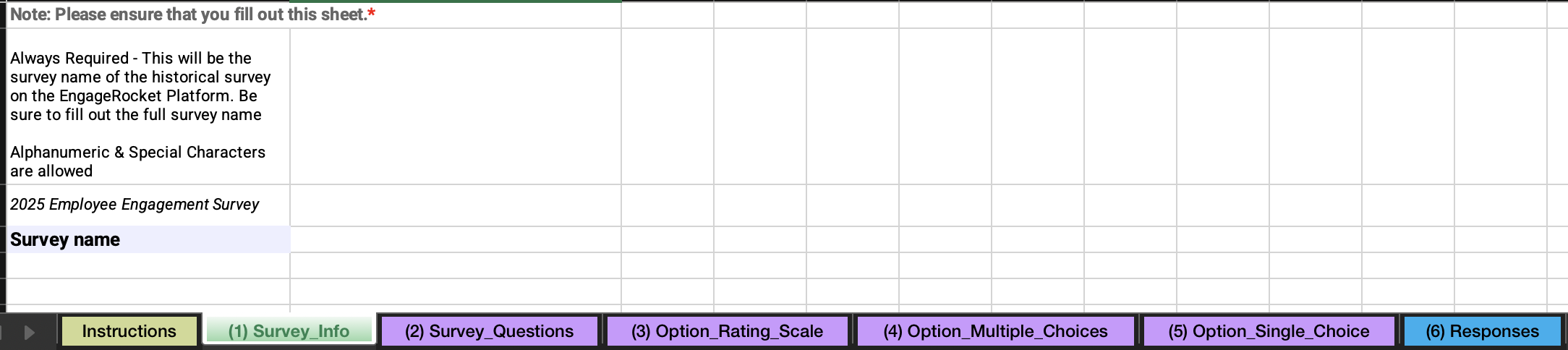
Step 2: Fill In Survey_Questions (Required)
This sheet is where you list every question from your original survey. Fill in one row per question with the following details — think of this as rebuilding the structure of your past survey so the platform can display it correctly on the dashboard.
- Page — the page number the question appears on, starting at 1. This determines the page structure when the survey is duplicated for future use.
- Question type — choose one of: Rating scale, eNPS, Multiple choices, Single choice, Yes/No, Open-ended.
- Required — enter Yes if the question was mandatory, or No if it was optional.
- Count towards overall score — applies to rating scale questions only. Enter Yes if this question should contribute to the overall score, or No if it should not.
- Enable comments — enter Yes to allow respondents to leave a comment alongside their answer. Applies to eNPS, Rating scale, Multiple choices, Single choice, and Yes/No question types.
- Enable other option — enter Yes to add an Other option. Applies to Multiple choices and Single choice questions only.
- Dimension — the category or theme the question belongs to (e.g. Accomplishment, Wellbeing). eNPS questions must always use the eNPS dimension.
- Question — the full question text exactly as it should appear to respondents. English is preferred. You may use
as a placeholder — the platform will automatically replace it with your organisation's name.
⚠️ Important: Duplicate question phrasing with the same question type will be rejected. Each question must be uniquely worded within the same question type — the same phrasing may be used across different question types.
⚠️ Important: There can only be one eNPS question per survey. The default eNPS scale is always 0 to 10. If your eNPS question uses a different scale, enter it as a Rating scale question instead — it must match the same scale as your other rating scale questions.
Step 3: Fill In Option_Rating_Scale (Conditional)
Skip this sheet if your survey has no rating scale questions — leave it completely unchanged.
If you do have rating scale questions, this sheet defines the scale that applies to all of them. Note that every rating scale question in the survey shares the same scale — you cannot set different scales for different questions. Fill in one row only with these four values: the minimum rating number (e.g. 1), the label for the minimum (e.g. Strongly disagree), the maximum rating number (e.g. 5), and the label for the maximum (e.g. Strongly agree).
⚠️ Important: Fill in one row only — additional rows will cause upload errors.
Step 4: Fill In Option_Multiple_Choices (Conditional)
Skip this sheet if your survey has no multiple choice questions — leave it completely unchanged.
If you do have multiple choice questions, list every answer option here — one row per option. Think of it as writing out every possible answer a respondent could have chosen. For each row, fill in the Question (must exactly match the question text in Survey_Questions, including spacing and punctuation), the Categorical option order (number each option sequentially starting from 1), and the Options column (the option text as it appeared to respondents).
⚠️ Important: If you enabled the Other option for a question in Survey_Questions, you must also add an Other row for that question in this sheet — otherwise the file will fail validation.
Step 5: Fill In Option_Single_Choice (Conditional)
Skip this sheet if your survey has no single choice questions — leave it completely unchanged.
If you do have single choice questions, follow the exact same format as Option_Multiple_Choices above — one row per answer option, with the same three columns: Question, Categorical option order, and Options. The same exact-match rule applies — the question text must match Survey_Questions exactly, including spacing and punctuation.
Step 6: Fill In Responses (Required)
This is the most critical sheet — each row represents one respondent's submission and drives everything you will see on the dashboard. Take extra care with formatting here, as this sheet is the most common source of validation errors.
Respondent identity columns — fill in for every row:
- Respondent submission date — must be in dd/mm/yyyy format exactly (e.g. 21/01/2025). No other format is accepted. After entering dates in Excel, always verify the cell format has not been auto-reformatted.
- Unique ID — required if Email is empty. Must be unique to each respondent and can be any alphanumeric value.
- Full Name — optional.
- Email — required if Unique ID is empty. Must be in a valid email format.
Organisational unit columns:
- Level 1 Unit Name, Level 2 Unit Name, etc. — the respondent's position in your organisational unit hierarchy. Add additional Level columns as needed. Unit names can be empty at the end of a branch but not in the middle — leaving a middle level blank will cause a validation error. If you selected Trend without an organization chart in Step 3 of the import, skip all unit columns entirely.
Custom attribute columns:
- Add columns after the unit levels for any attributes you want to segment by (e.g. Tenure, Seniority, Age Band, Gender). There is no limit. If a cell is left blank, the respondent will be marked as Unassigned for that attribute — this will not cause a validation error.
Question answer columns:
Each question from Survey_Questions must have its own column header in this exact format: Q: [full question text] — note the space after the colon. Enter each respondent's answer as follows:
- Rating scale or eNPS → enter the scale number (e.g. 4)
- Single choice → enter the exact option text as listed in Option_Single_Choice
- Multiple choices → enter all chosen options separated by a semicolon (e.g. Option A;Option C)
- Yes/No → enter Yes or No (not TRUE or FALSE)
- Open-ended → enter the free text response
Other response columns — if a respondent selected Other for a Single choice or Multiple choice question, add a separate column with the header: Q: [exact question text] [Other]
Comment columns — if comments are enabled for a question, add a separate column with the header: Q: [exact question text] [Comment]
Pre-Upload Checklist
Run through this before uploading your file — most validation errors are caused by one of these:
- No blanks in required fields
- No column headers have been changed or removed
- All date fields are formatted as dd/mm/yyyy
- Yes/No fields use Yes or No — not TRUE or FALSE
- No missing unit levels in the middle of a hierarchy (e.g. Level 1 and Level 3 filled but Level 2 left empty)
- Only one row of data in the Option_Rating_Scale sheet
- Sample data deleted from any option sheets not being used
- Other rows are present in option sheets where the Other option was enabled in Survey_Questions
- The file is not password protected
- The file is saved in .xlsx format
Something Not Working?
Date format error in the Responses sheet.
- Likely cause: Excel may have auto-reformatted the date to a different style after entry.
- Action: Dates must be in dd/mm/yyyy format exactly. After entering dates, check the cell format in Excel to confirm it has not been changed automatically.
The file keeps failing on the same row.
- Likely cause: Common causes are a missing Unique ID or Email, a unit name mismatch, or an answer value that does not match the defined options.
- Action: Open the error message carefully and check that specific row in the Responses sheet for the issues above.
Upload errors with no clear cause.
- Likely cause: Leftover sample data in unused option sheets, or a missing Other row for a question where the Other option was enabled.
- Action: Check each option sheet and delete any sample data rows, and verify that Other rows are present where required.
The Other option is causing validation errors.
- Likely cause: The Other option is enabled in Survey_Questions but is not listed as an explicit option row in the corresponding option sheet.
- Action: Add an Other row in Option_Multiple_Choices or Option_Single_Choice for that question.
Still Need Help?
If you have questions about completing the historical survey import template, reach out to us at support@engagerocket.co and we'll be happy to assist!