
⚠️ Who is this article for? This guide is for Entity Admins and users with dashboard access who want to download their survey results from the standard Survey Dashboard. If you cannot see the download button on your dashboard, your access level may be restricted — see Understanding your dashboard access level. If your organisation uses a custom dashboard, download options may differ. Contact support@engagerocket.co for help.
EngageRocket lets you download your survey results in different formats depending on which tab you are on. Each tab offers a download option suited to its content: a PDF summary from the Overview, a full dataset from Responses, a segmented analysis from Hotspots, and an action plan export from Actions.
💡 Good to know: PDF downloads go directly to your device. Excel downloads are sent to your registered EngageRocket email address. Check your inbox (and spam folder) after requesting one.
💡 What’s included in your download: Downloads reflect your dashboard access level and your current view:
- Access level: If your permission is set to View own team’s data, your downloads include your unit’s results only. Users with View all respondents’ data can download organisation-wide results.
- Filters: Downloads include only the data matching the filters you have applied on screen. To download a different group, change your filters before clicking Download.
Exception: Action Plan exports from the Actions tab are not affected by on-screen filters. See Downloading Action Plans (Excel) below.
How Score Type Affects Your Downloads
If your account has both scoring types enabled, your downloads reflect whichever Score Type (Favourability or Mean) is selected on screen at the time you click Download:
- Favourability selected: your PDF and Excel exports show the percentage of positive responses, as usual.
- Mean selected: your exports show the average rating instead, on your survey’s original scale (e.g. 4.20 on a 1–5 scale).
💡 Good to know: If you need both views, download the results once under each Score Type. Switching the pill and downloading again exports the other score type as a separate file.
Downloading the Survey Overview (PDF)
From the Overview tab, you can download a PDF summary of your survey results, which is useful for leadership presentations or stakeholder reports. Navigate to the Dashboard Overview tab for your survey and click the Download button at the top right of the page. The PDF will download directly to your device.
💡 What the PDF includes: The PDF captures your overall scores, eNPS, top and bottom dimensions, and participation at the time of download. It does not include detailed question-level data or open-ended responses. Use the Excel download from the Responses tab for that.
See how to navigate the survey dashboard overview.
Downloading Detailed Response Data (Excel)
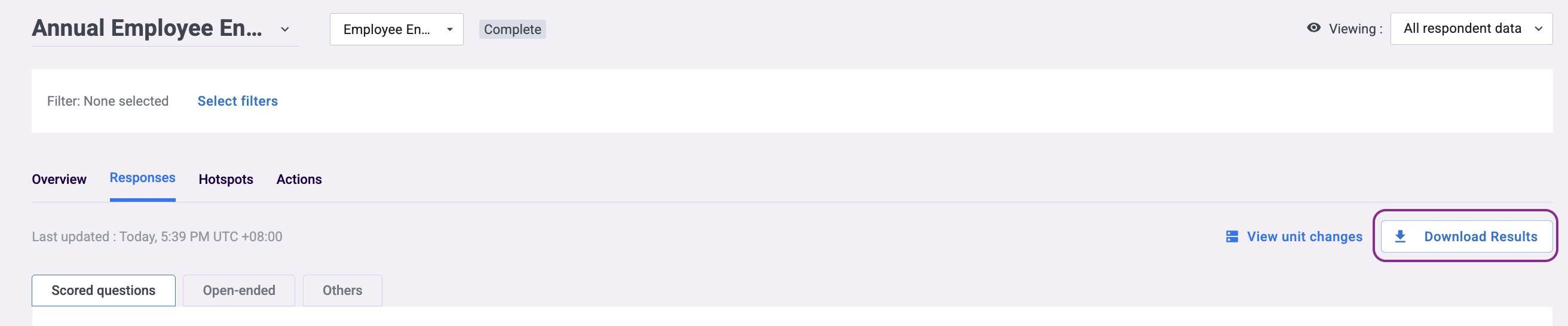
From the Responses tab, you can download a full dataset of your survey results in Excel format. Because of the potentially large file size, the Excel file is sent to your registered email address rather than downloading directly to your browser.
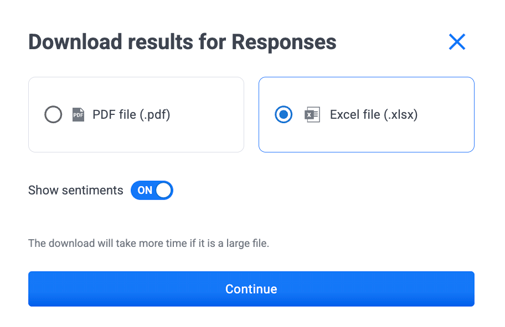
Navigate to the Responses tab for your survey and click the Download Results button. You will be prompted to choose your preferred format: PDF downloads directly to your device, while Excel is sent to your registered email address. If you selected Excel, check your inbox. The file will arrive as an attachment and may take a few minutes depending on the size of your dataset.
💡 Why Excel is sent by email: Larger datasets can cause browser timeouts or incomplete downloads. Sending the file to your email ensures you receive the complete dataset reliably, even for surveys with a large number of respondents.
See how to view and analyse your survey responses.
Downloading Hotspot Analysis (Excel)
From the Hotspots tab, you can download your hotspot analysis, including any segment selections you have applied, as an Excel file. Navigate to the Hotspots tab, set up your segment selection as needed, and click the Download (Excel) button at the top right of the page. The file will be sent to your registered email address. Allow a few minutes for the email to arrive.
See how to use hotspots for targeted insights.
Downloading Action Plans (Excel)
If the ACT module is enabled for your entity, you can export your action plans from the Actions tab as an Excel file. Click the Download .xls button next to the Action Plan section header. A confirmation message will appear, and the file will be sent to your registered email address with the subject “Your action plan excel is ready for download.” Click Download File in the email to save it.
💡 Good to know: The export includes all action plans you have permission to see. Your on-screen filters do not affect the export. See How to create and manage action plans.
⚠️ Response Rate tab: There is currently no download option on the Response Rate tab. To share overall participation, use the Participation figure in the Overview PDF download.
Something Not Working?
The PDF download is not working.
- Likely cause: Your browser may be blocking the download or pop-ups.
- Action: Check your browser's download settings and make sure pop-ups are not being blocked. Try a different browser if the issue persists.
I have not received the Excel file by email.
- Likely cause: The email may have been filtered to spam, or the file is still processing for a large dataset.
- Action: Check your spam or junk folder. The file is sent to the email address associated with your EngageRocket account. Allow up to 10 minutes for large datasets. If it still has not arrived, contact support@engagerocket.co.
I haven’t received my action plan export.
- Likely cause: The export is generated in the background and may take a few minutes, or the email may have been filtered to spam.
- Action: Check your spam or junk folder for “Your action plan excel is ready for download.” If it hasn’t arrived after 10 minutes, contact support@engagerocket.co.
The download button is not visible.
- Likely cause: You may not have the necessary dashboard permissions to download results.
- Action: Ask your Entity Admin to check your access settings. See Understanding your dashboard access level.
My download only includes my unit’s data, or less data than I expected.
- Likely causes:
- Your permission is set to View own team’s data, so downloads only include your unit’s results.
- Filters are applied on screen, and downloads only include the filtered data.
- Action: Check and clear any filters on screen, then download again. If you need organisation-wide results, ask your Entity Admin to change your permission to View all respondents’ data. See Understanding your dashboard access level.
Some results are missing or blank in my download.
- Likely cause: Segments or questions below the confidentiality threshold are hidden in downloads, just as they are on the dashboard.
- Action: This is by design to protect respondent confidentiality and cannot be overridden. See what is the confidentiality threshold and why can’t I see results?
I need to download results from a custom dashboard.
- Likely cause: Custom dashboards are built specifically for your organisation and may have different download options.
- Action: Contact support@engagerocket.co, and our team will help you.
Still Need Help?
If you have questions about downloading your survey results, reach out to us at support@engagerocket.co and we'll be happy to assist!