
⚠️ Who is this article for? This guide is for Entity Admins and users with a custom role that grants survey management access. If you are unsure how projects, entities, and surveys relate to one another, see Understanding the Entity, Project and Survey structure before continuing.
Every survey in EngageRocket lives inside a project. Before you can build a survey, you need to create a project first. This article walks you through each field in the New Project setup and explains how to choose the right project type for your needs.
💡 Where to start: Read Understanding the Entity, Project and Survey structure to understand the difference between Frequency, One-off, and Milestones project types. Choosing the right type upfront will save you from having to start over — it cannot be changed after the project is created.
Creating Your Project
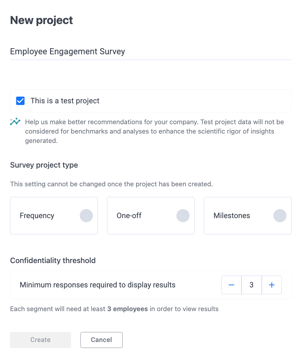
Navigate to the Survey Projects section from the top navigation bar and click +Create new project. A New Project panel will appear with the following fields to complete:
Project name — Enter a clear and descriptive name, such as Employee Engagement 2025 or Onboarding Pulse Q3. This name will appear on your dashboard, so make it easy to identify.
This is a test project — Tick this checkbox if you are setting up the project for testing purposes only. Test project data is excluded from benchmarking and analyses. Leave this unticked for live surveys.
Survey project type — Select one of three types: Frequency, One-off, or Milestones. See the section below for details on each. Note that this setting cannot be changed once the project has been created.
Confidentiality threshold — Set the minimum number of responses required before results are displayed on the dashboard. Use the – and + controls to adjust the number. EngageRocket recommends a minimum of 3 — each segment will need at least this many employees in order to view results.
Once all fields are completed, click Create. The button will remain greyed out until all required fields are filled in.
⚠️ Important: The project name and project type cannot be changed after the project has been created. Double-check your settings before clicking Create.
Survey Project Types Explained
Frequency — Use this for recurring surveys that repeat on a set schedule, such as a monthly pulse. Set your recurrence interval (e.g. every 1, 2, or 3 weeks or months), the days it should run, and an optional end date to stop the survey automatically.
One-off — Use this for a single survey with no repeat. No additional settings are required — click Create and you are done.
Milestones — Use this for surveys triggered automatically by an employee lifecycle date, such as a start date. Choose the date attribute that will trigger the survey (e.g. Start Date), then use the Add Milestone button to define the timing — for example, 30 days, 60 days, and 90 days after the employee's start date.
See how to manage survey recipients for Milestone surveys.
Something Not Working?
I selected the wrong project type.
- Likely cause: Project types are locked after creation and cannot be changed.
- Action: Delete the project and create a new one with the correct type. If surveys have already been launched inside the project, contact support@engagerocket.co before deleting.
I marked the project as a test by mistake.
- Likely cause: The Test project flag cannot be removed after creation.
- Action: Delete the project and create a new one without the test flag checked.
My Milestones project is not triggering surveys automatically.
- Likely cause: One or more employees are missing a Start Date in the Employee List.
- Action: Go to the Employee List, check that all relevant employees have a Start Date recorded, and update any missing entries.
My Frequency survey is not repeating as expected.
- Likely cause: The recurrence schedule may not have been configured correctly, or an end date may have been set unintentionally.
- Action: Review the project settings to confirm the recurrence interval and days are correct, and check that no end date has been set that would stop the survey early. If the issue persists, contact support@engagerocket.co.
I cannot see the +Create new project button.
- Likely cause: You may not have the permission required to create projects.
- Action: Contact your Entity Admin to request the correct access level, or see Entity Permissions for more information.
Still Need Help?
If you have questions about creating a survey project, reach out to us at support@engagerocket.co and we'll be happy to assist!