
1. Assigning Unit Heads in Bulk
Bulk assignment is recommended when you need to update multiple Unit Heads at once.
To begin, go to Employees from the top navigation bar and open the Organisational Chart section. From there, click the Bulk Actions dropdown and select Import Unit Heads. You’ll be prompted to download an Excel template, which is required for bulk updates.
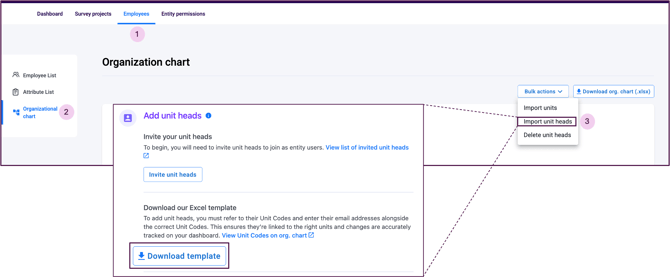
When completing the template, refer to each unit’s Unit Code and enter the corresponding Unit Head’s email address. Use the correct Unit Codes from the List of Unit Codes sheet to ensure Unit Heads are linked to the right units and that all changes are accurately reflected on the dashboard.
For additional guidance, you can also refer to the Instructions to Add Unit Heads sheet for a step-by-step walkthrough on completing the template.
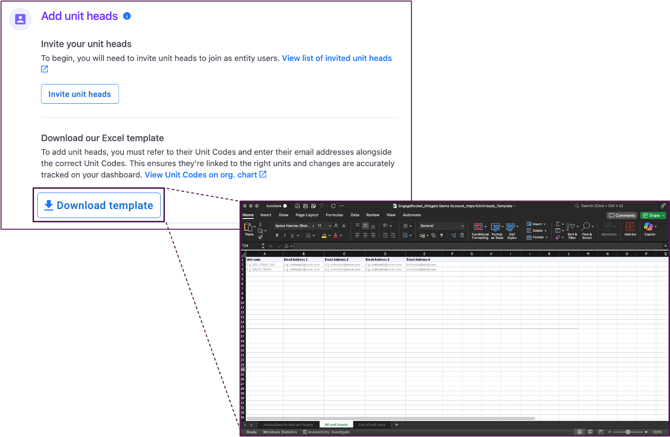
Before uploading the completed template, make sure the Unit Heads have already been invited as entity users.
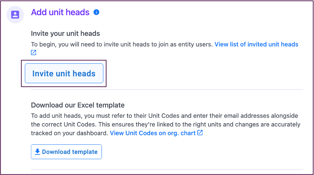
From the Import Unit Heads page, click Invite Unit Heads. You’ll be redirected to the Permissions page to continue the invitation process.
From there, follow the steps outlined in the article Inviting Users in Bulk from the Permissions Page.
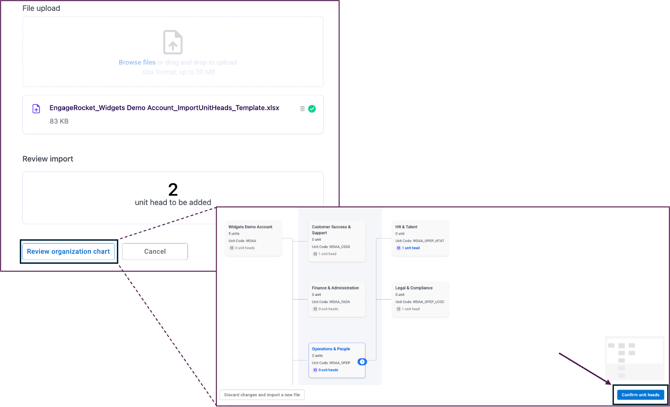
Once the invitations are sent, save your completed file in .xlsx format and upload it. The system will automatically validate the file and let you know whether the upload is successful or if there are any errors. If corrections are required, the page will clearly highlight the specific rows that need fixing. You can cancel the upload, update the file, and re-import it.
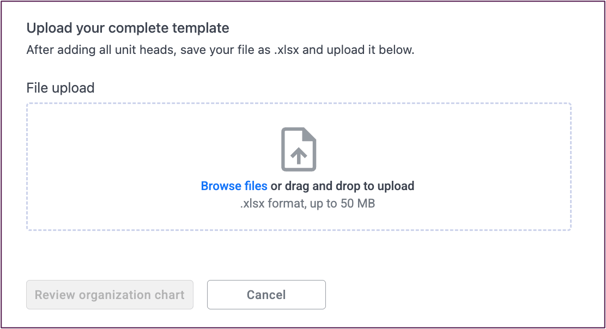
After a successful validation, you’ll be shown a summary of the total number of Unit Heads or users that will be assigned. Review the organisational chart carefully, then click Confirm unit heads to complete the process.
2. Assigning Unit Heads Individually
Individual assignment is useful when you only need to update one or two units.
Start by navigating to Employees and opening the Organisational Chart section. Before assigning a Unit Head, ensure the user has already been invited as an entity user. If not, you can invite them via Bulk Actions → Import Unit Heads, similar to above process, then select Invite Unit Heads. You may also refer to the article on inviting individual users from the Permissions page for guidance.
Once the user has been invited, locate the relevant Unit Code in the organisational chart.
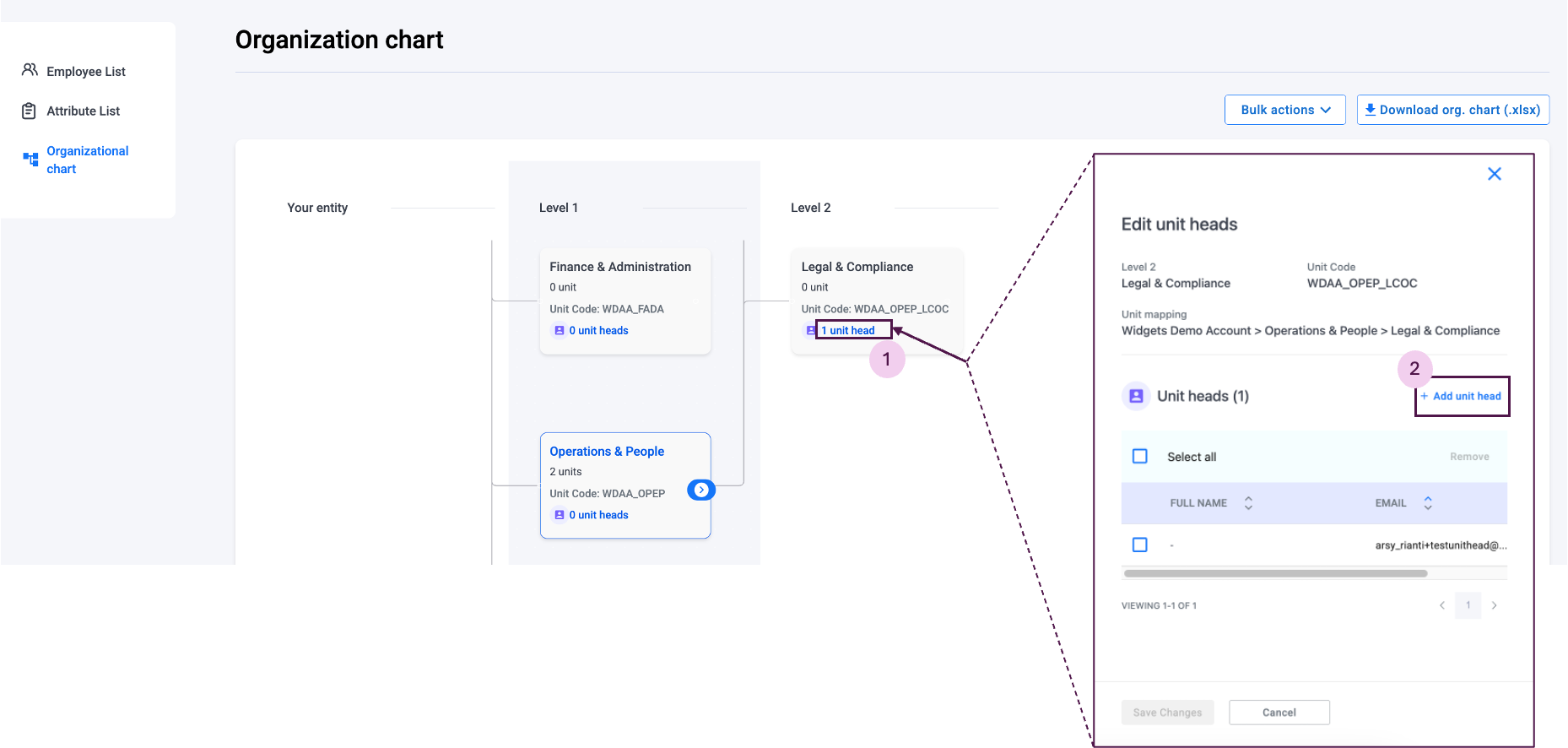
Under that unit, click Unit Heads to open the assignment panel, then select Add Unit Head. Enter the user’s email address in the field provided. As the user is already invited, their name will appear automatically. Click Confirm to finalise the assignment.
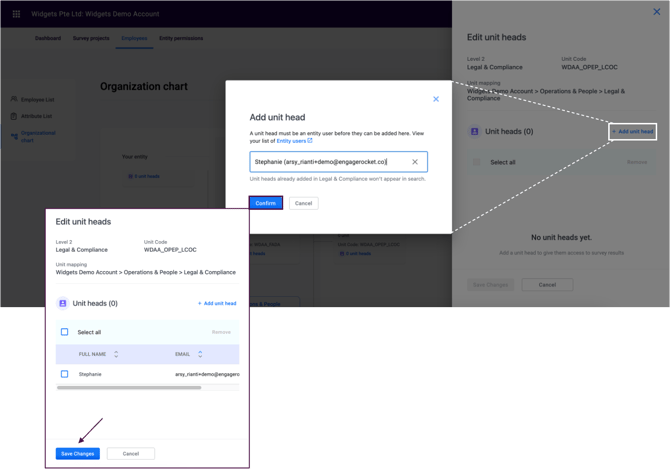
With Unit Heads correctly assigned, your organisational chart stays up to date and reporting remains aligned to the right teams and leaders.
If you have any questions or need further assistance, feel free to reach out to us at support@engagerocket.co We're here to help!