
⚠️ Who is this article for? This guide is for new users who have received an EngageRocket invitation email and are logging in for the first time using an email address and password. If your organisation uses Microsoft or SAML SSO, please follow the SSO login guide instead.
When your organisation's admin adds you to EngageRocket, you will receive an email invitation to get started. Activating your account is a quick, one-time process, this guide will walk you through each step.
Before You Begin
Make sure you have access to the inbox of the email address your admin used to invite you. The invitation email will come from EngageRocket, if you cannot find it, check your spam or junk folder.
💡 Good to know: The activation link in your invitation email is valid for 7 days. If it has expired, go to the EngageRocket login page and click 'Forgot password?' to set a new password and regain access. See the password reset guide here.
Setting Up Your Account
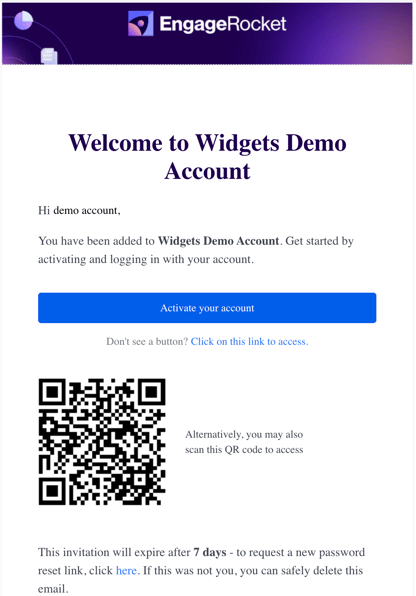
- Open the invitation email from EngageRocket and click 'Activate your account'. This will open the account setup page in your browser.
- Create a password for your account. Your password must meet all of the following requirements:
- At least 8 characters
- At least one uppercase letter
- At least one lowercase letter
- At least one number
- At least one special character (e.g. !, @, #, $)
- Re-enter your password in the 'Confirm password' field, then click 'Save changes'.
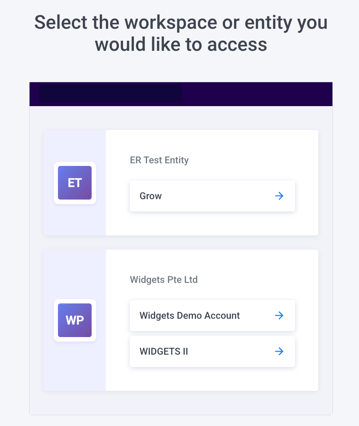
- You will be redirected to the workspace selection page. Click the arrow next to your organisation's name to enter your dashboard.
- On your first login, you may be asked to enter your Full Name and Preferred Name. Fill these in and click 'Proceed' to access your dashboard.
What You Will See After Logging In
Once you are in, what you see depends on the role your admin has assigned to you:
- Entity Admin — You will have access to the full platform, including Projects, Employees, and Permissions settings.
- Unit Head — You will see your team's dashboard and survey results.
💡 Not sure what role you have? Check with your Entity Admin.
Something Not Working?
I did not receive the activation email.
- Likely cause: The email may have been filtered, or it was sent to a different inbox.
- Action: Check your spam or junk folder. If it's not there, ask your Entity Admin to verify your email address and resend the invitation.
The activation link says it has expired.
- Likely cause: Activation links are valid for 7 days and yours has passed that window.
- Action: Go to the EngageRocket login page, click 'Forgot password?', enter your email address, and follow the steps to set a new password. See the full password reset guide here.
The page shows an error when I click the activation link.
- Likely cause: A browser compatibility or cached session issue.
- Action: Try opening the link in a different browser or in an incognito/private window. If the issue persists, contact our support team.
I am being asked to sign in via SSO instead.
- Likely cause: Your organisation has SSO enabled, which means you do not use an EngageRocket password.
- Action: Follow the SSO login guide instead.
Still Need Help?
If you are still unable to activate your account after following these steps, reach out to us at support@engagerocket.co and we'll be happy to assist!