![EngageRocket Logo-01-3.png]](https://resources.engagerocket.co/hs-fs/hubfs/EngageRocket%20Logo-01-3.png?height=40&name=EngageRocket%20Logo-01-3.png)
Company Admins can manage the list of reviewers assigned to a reviewee when the review is in the Reviewers Confirmed stage, which occurs after the reviewer list has been approved. This allows you to add, edit, or remove reviewers to ensure the review process continues smoothly.
Follow the steps below to manage reviewers effectively.
Step 1: Go to the Reviewees List
-
Navigate to Reviews.
-
Select the relevant Review name.
-
Go to the Reviewees section and Click View.

Step 2: Search for the Reviewee
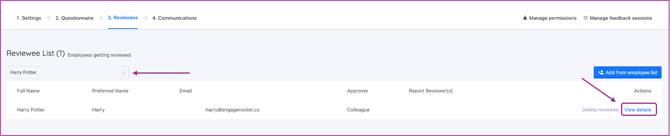
Use the search bar to find the Reviewee by Name, or Email address. Once found, click view details on the right hand page. This will open the detailed view for the selected Reviewee.
Step 3: Locate the Reviewer Section
-
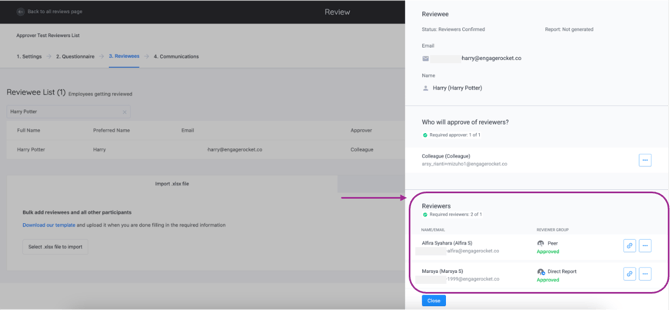
Scroll down until you find the Reviewer section.
-
Here, you can see the list of reviewers currently assigned to the Reviewee.
Step 4: Edit or Remove Existing Reviewers
-
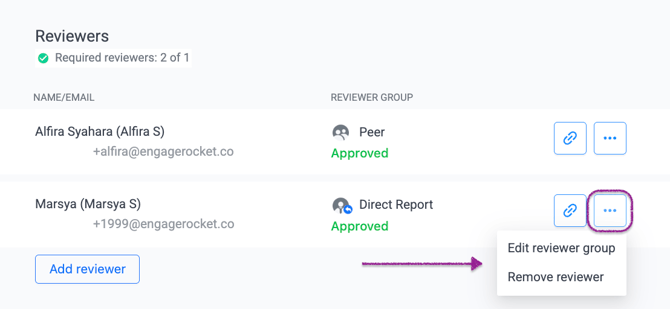
Click the three dots (⋮) next to the reviewer’s name.
-
Choose to:
-
Edit the reviewer group, or
-
Remove the reviewer from the list
-
Step 5: Add New Reviewers
-
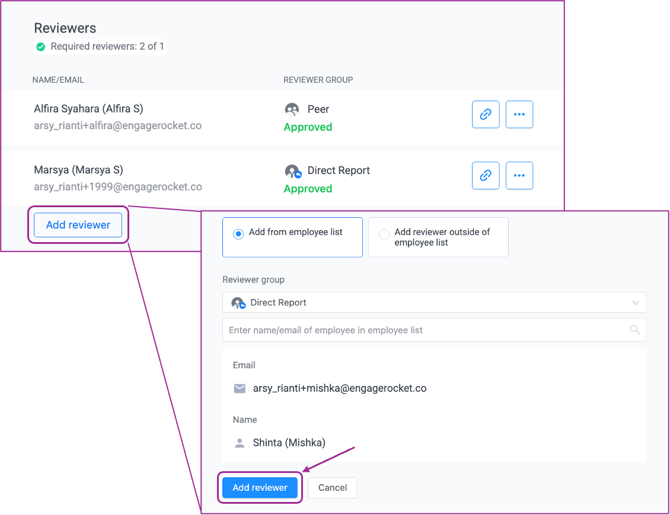
Click Add reviewers.
-
Select reviewers from:
-
The employee list, or
-
External employees
-
-
After selecting the reviewers, always click Add reviewer to confirm.
⚠️ Important: Reviewers will not be added unless you click Add reviewer.
Keeping the reviewer list up to date at this stage helps ensure feedback is collected from the right reviewers and the review process continues without disruption.
For any questions, send an email to our responsive support team at support@engagerocket.co We're here to assist you every step of the way!